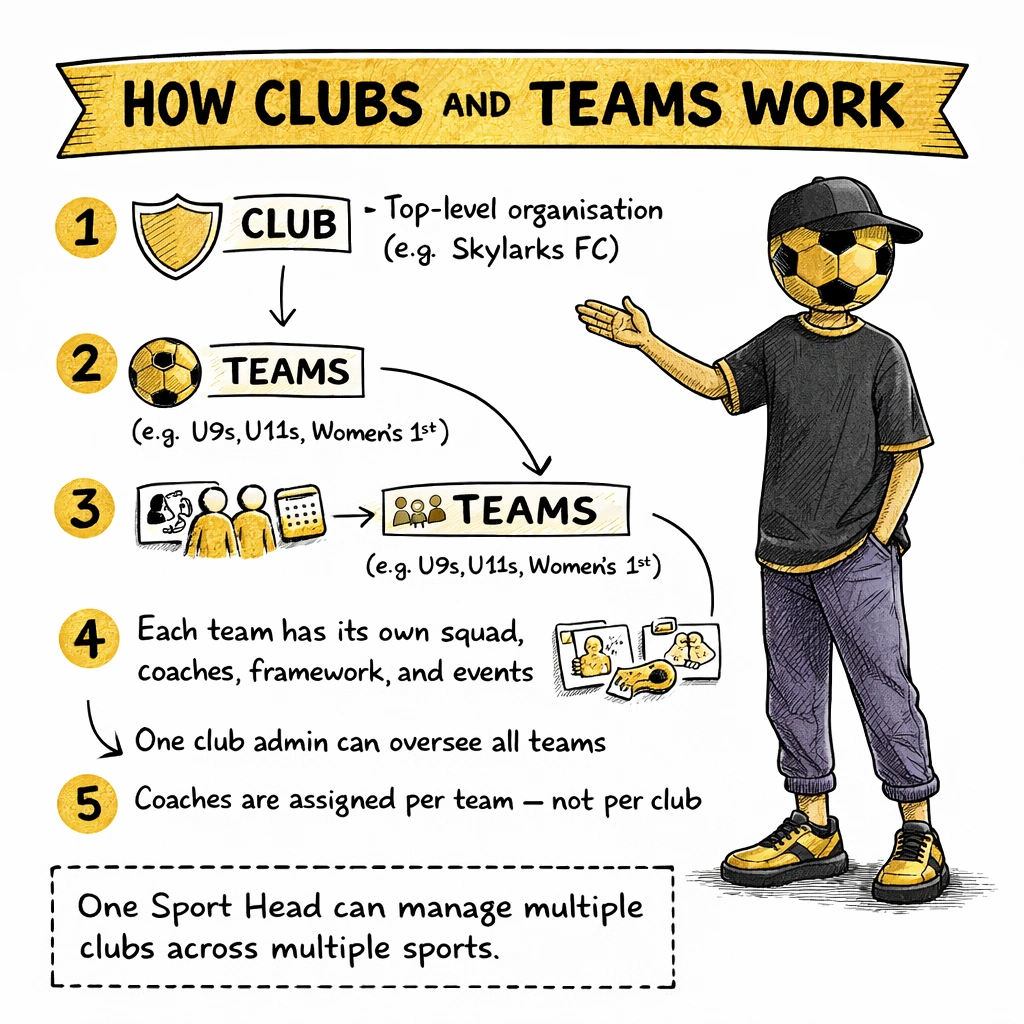
Clubs are the top-level organisation. Teams sit inside them. This guide covers how to create both, invite and manage your squad, and change settings as your season progresses.
SHOT Clubhouse uses a two-level structure: clubs at the top, and teams inside each club.
A club is your organisation — for example, Isleham United Youth FC. Inside that club you might have a U9s team, a U11s team, and a Women's First team. Each of those is a separate team with its own squad, its own events, and its own evaluation framework.
You can have one team or many. Most grassroots clubs start with one team and add more as they grow.
Your Club / Organisation
Club Admin
Team / Squad A
Coach 1
Coach 2
Athlete
Athlete
Multiple coaches per team
Team / Squad B
Coach 1
Coach 2
Athlete
Athlete
Athletes can join multiple teams
Parent 1
Parent 2
Each athlete can have multiple parents. One parent can manage multiple children.
Add as many teams as your organisation needs
Club / Organisation
Team / Squad
Coach
Athlete
Parent
One app, everything. A club admin can run multiple clubs across multiple sports from a single SHOT Clubhouse account. A coach can coach across multiple clubs and multiple sports. An athlete can be a member of multiple teams across different sports. A parent can manage multiple children, each in different clubs and sports. You manage your entire sporting life in one place.
Example from the app: A club admin view shows the team name (e.g. "Mens Ballon D'or Squad") and sport (Football), quick-action buttons for Invite Athletes and Add Coach, the active framework, and the full Active Athletes list with a count (e.g. "Active Athletes (15)").
Create a club
Club adminCoach
You only need to create a club once. Every team you run lives inside it.
1
Tap the Clubhouse tab
The Clubhouse icon is the first at the bottom of every screen. This is your home base in the app.
2
Select "Create a club"
Enter your club name and select your sport. Your club is created immediately.
3
You are now the club admin
As the creator, you have full admin access. You can add further admins from the club settings at any time.
Add a team
CoachClub admin
Once your club exists, you can add as many teams to it as you need.
1
From your club page, tap "Add team"
Give the team a name (for example, "Skylarks U9s"), select the sport, and choose the age group.
2
Choose an evaluation framework
You'll see frameworks available for the sport you chose when creating the club. Select the level that fits your squad. You can change this later. See the Frameworks guide for details.
3
Choose your default evaluation settings
Decide which evaluation types to enable for this team. You can switch on all three (Pre-Eval, Post-Eval, and Coach Feedback), or start with just Coach Feedback, or enable Post-Eval and Coach Feedback without Pre-Eval. These defaults apply to every event on this team and can be changed at any time from team settings.
Invite athletes
Coach
All teams on SHOT Clubhouse are invite-only. From the team admin screen, tap Invite Athletes. You will receive a shareable link and a join code for your team.
1
Share the link and code with your athletes
Send the invite via WhatsApp, email, or whatever group messaging platform you already use with your squad. Athletes will need the join code to complete the process.
2
Athletes follow the link, create their Sport Head, and enter the code
If they do not have an account, they sign up and set up their Sport Head (handle and avatar) first. They then enter the join code to be added to the team.
3
Check Active Athletes to confirm
Your team admin screen shows the full Active Athletes list with a count. Verify everyone has joined before your first session.
Athletes under 13: Parents must create and manage the account on behalf of the child. Share the invite link with the parent, not the child directly. See the Safeguarding guide for full details.
Add coaches
CoachClub admin
From the team admin screen, tap Add Coach. A code is generated that you share with the coach. The coach must already have a SHOT Clubhouse account — they need their own Sport Head — before they can join your team.
Once a coach joins a team, they can:
✓
View the full squad and athlete profiles
See all active athletes and their evaluation history.
✓
Create and publish events
Set up training sessions and match events for the team.
✓
Complete Coach Feedback and write Coach Notes
Rate each athlete across the five development categories and add free-form Coach Notes for each event.
Multiple clubs, multiple sports. A coach can be active across multiple clubs and multiple sports from a single account. A team can also have more than one coach — each with the same access to create events and submit feedback.
Managing athletes
Coach
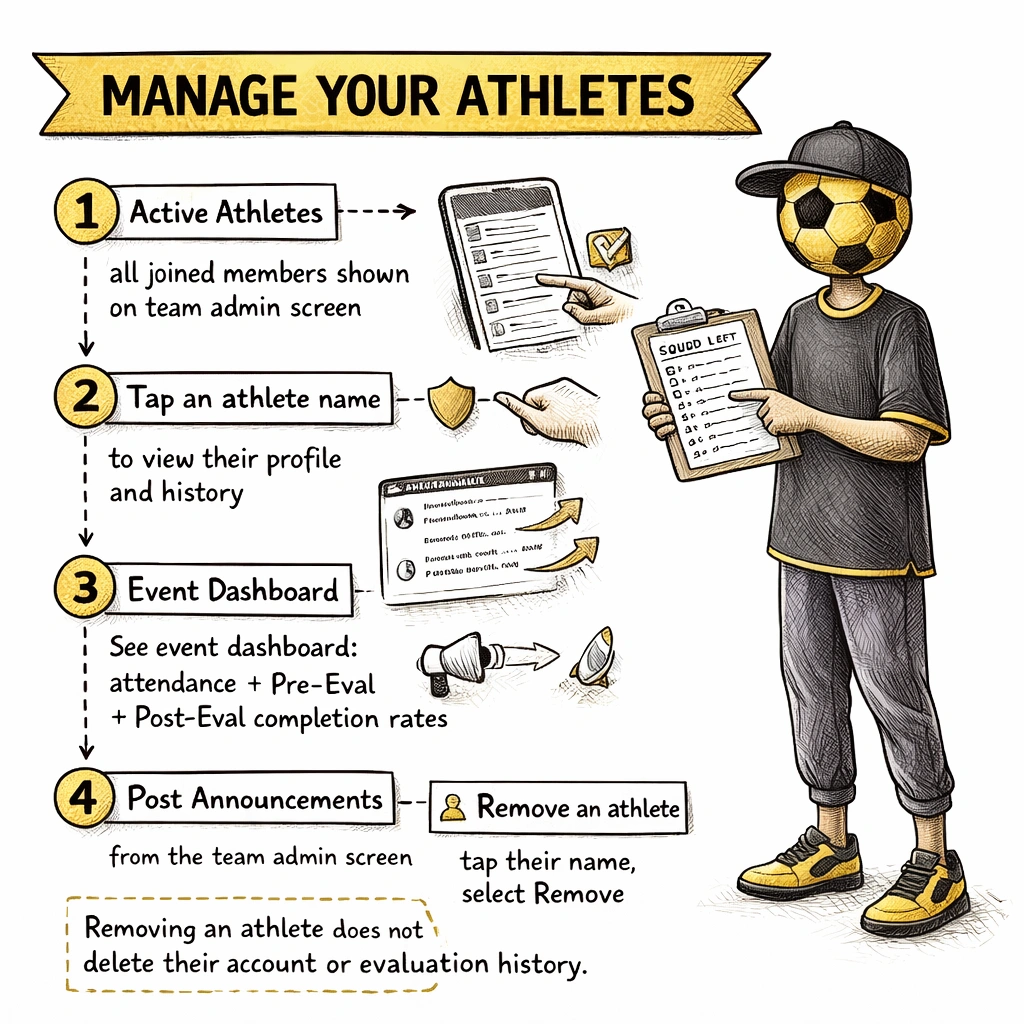
Your Active Athletes list is on the team admin screen, below the Evaluation Framework section. It shows every athlete who has accepted their invite and joined the team, with a total count.
Tap any athlete's name to view their profile, see their evaluation history, and access management options.
Confirming attendance at events
On the event dashboard, the Dashboard tab shows a real-time attendance count — how many athletes have confirmed, how many have pre-evaluated, and how many have completed post-evaluation. Use this before and after sessions to see who is engaged.
Admin tools — announcements, fixtures, and calendar
Club adminCoach
Club admins and coaches can manage the team's schedule and communications directly from the Clubhouse tab.
✓
Announcements
Post club or team announcements visible to all members. Use for important updates, season news, or anything the whole squad needs to see.
✓
Fixtures
Upcoming training sessions and matches are published as fixtures, visible to athletes, coaches, and linked parents. Each fixture shows date, time, location, and event type.
✓
Calendar view
The calendar gives a full view of all scheduled events for the team. Athletes can see what is coming up and confirm attendance directly from the calendar.
Coach Notes — free-form feedback
Coach
After each event, coaches can write free-form Coach Notes alongside the structured evaluation scores. Coach Notes appear on the event result screen and are visible to athletes (and parents for under-18s).
Coach Notes are your space to go beyond scores — to highlight specific moments, recognise team performance, call out an athlete's development, or give context that the five-category scores alone do not capture.
Example from the app: "Really proud of the girls today. I thought they played really well against a very good opposition. Our defence and midfield were rock solid. Lolio's confidence on the ball to dribble around a few athletes and make the run then make a great pass was awesome."
Remove an athlete
Coach
To remove an athlete from the team, tap their name in the Active Athletes list on the team admin screen, then select the remove option from their management menu.
Removing an athlete from a team does not delete their account or their evaluation history. Their records remain attached to their Sport Head. If they join another team in the future, their history goes with them.
To delete a club or team entirely: This must be requested — you cannot delete a club or team directly from the app. Contact support at support.shotclubhouse.com to request deletion. This prevents accidental loss of athlete data and evaluation history. If you need to remove a child's account or data entirely, see the Safeguarding guide.
Team settings
Coach
Team settings are accessible from the team admin screen. Here you can:
✓
Change the evaluation framework
Switch to a different framework level as your squad develops. The app auto-calculates the correct week. See the Frameworks guide.
✓
Set default evaluation types
Switch Pre-Eval, Post-Eval, and Coach Feedback on or off independently. Options: all three, Coach Feedback only, or Post-Eval and Coach Feedback without Pre-Eval. Start simpler and add more as athletes get comfortable with the process.
✓
Change the team name or sport
Edit from settings at any time. Changes apply immediately.