
Getting started
Welcome to SHOT Clubhouse
Find your way around the current mobile app, then follow the setup guide for your role. Start with Home and Quick actions, find a feature in MORE, switch your current role or browse sport in PULSE.
Quick Start One-Pager
Choose Your Path to Get Going
Whether you're an individual coach running one team, a director launching an entire club, or an academy customizing multisport frameworks, choose the right route below to get up and running in minutes.
Managing One Team
Download the app or go to app.SHOTClubhouse.com, register your account, and go through the in-app Club Wizard.
- Automatic coach privilege granted immediately on team creation
- Set your squad name, sport, and age category
- Instantly generate your team invite code for athletes and parents
- Schedule fixtures or practice events and run evaluations right from Home
Available on iOS, Android, and web browser.
Create Club & Multiple Teams
Best to use our web Club Wizard. Use the codes it generates to create your club, invite all your coaches and members, and assign them to the right teams.
- Configure your club name, sport, and all your squads in one step
- Recommended development frameworks assigned automatically based on age group
- Generates team-scoped coach and athlete invite codes for every squad
- Instant Launch Pack email sent to your inbox with copy-ready share messages
No app download needed to initialize your entire club structure.
Multisport & Bespoke Frameworks
Get out of the box with professionally created frameworks from Play to Professional, or create your own custom focus areas.
- 7 progressive levels: Play, Foundation, Development, Academy, Pro, Competitive, Recreation
- 5 holistic pillars: Technical, Tactical/Psychological, Social, Physical, and Personal
- Pro clubs with non-negotiables & bespoke focus areas per member or per team can easily manage them on the web version
- Set custom per-pillar block development objectives for each athlete
Log in at app.SHOTClubhouse.com and visit PERFORM > Frameworks.
Athlete & Member Consent Models
Manage safeguarding and data processing consent on a per-club, per-team, per-member, or individual athlete basis.
- Individual Parent Consent: Youth accounts (<18) generate a secure email verification token for parents to authorize their child's account
- Club / Institutional Consent: Schools, academies, and clubs operating under institutional waivers can onboard squads directly
- Data Disclosures: Explicit granular control for voice, AI notes, and video analysis in Account Settings
- Safe by default: Minor accounts are strictly protected under COPPA and App Store rules
Transparency and safeguarding compliance across every squad.
Home and Quick actions
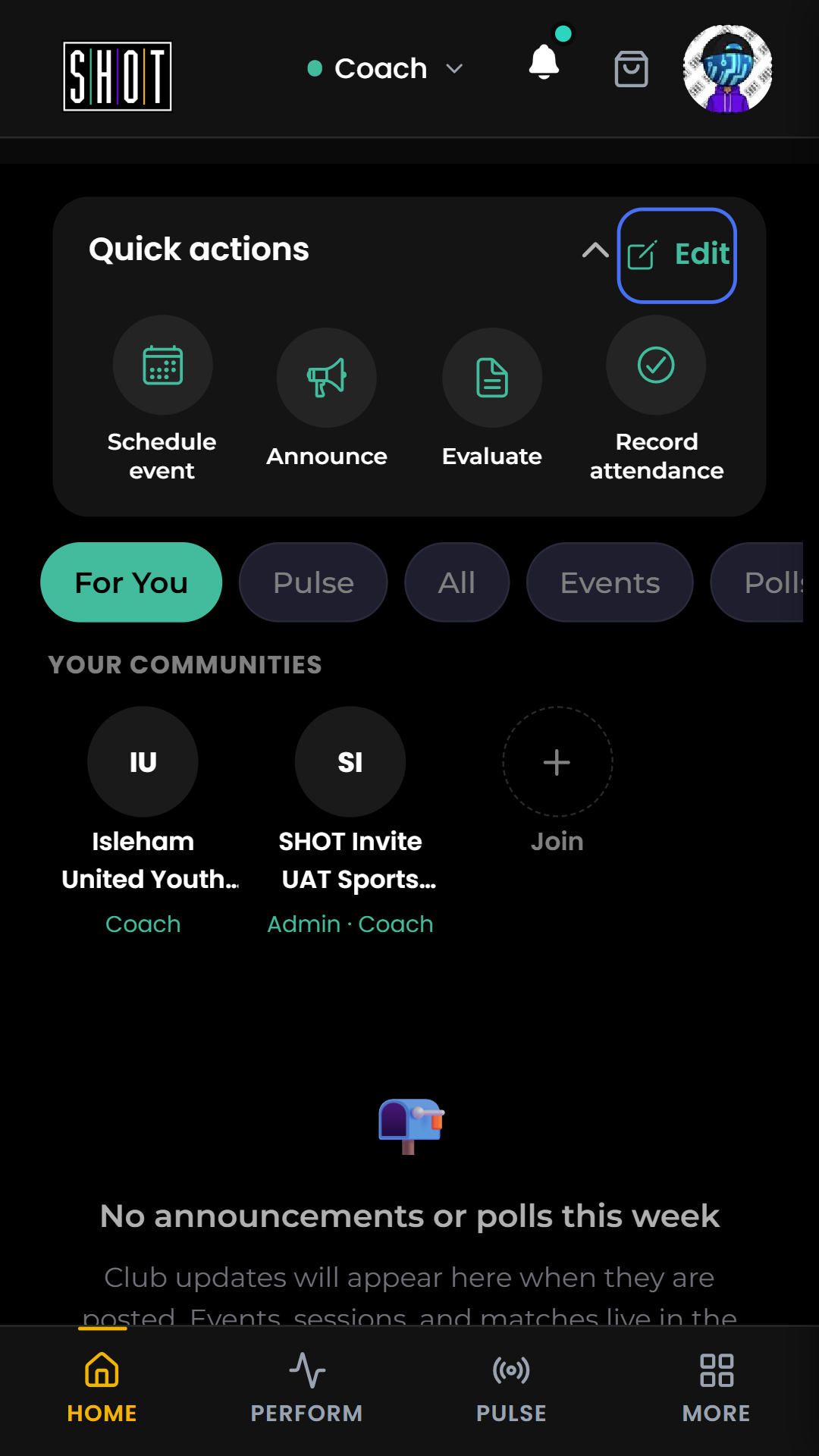
Tap HOME, the first item in the bottom navigation. Quick actions sit above your feed sections and Your communities.
In the Coach view captured here, the row contains Schedule event, Announce, Evaluate and Record attendance. Tap the chevron to collapse or expand it.
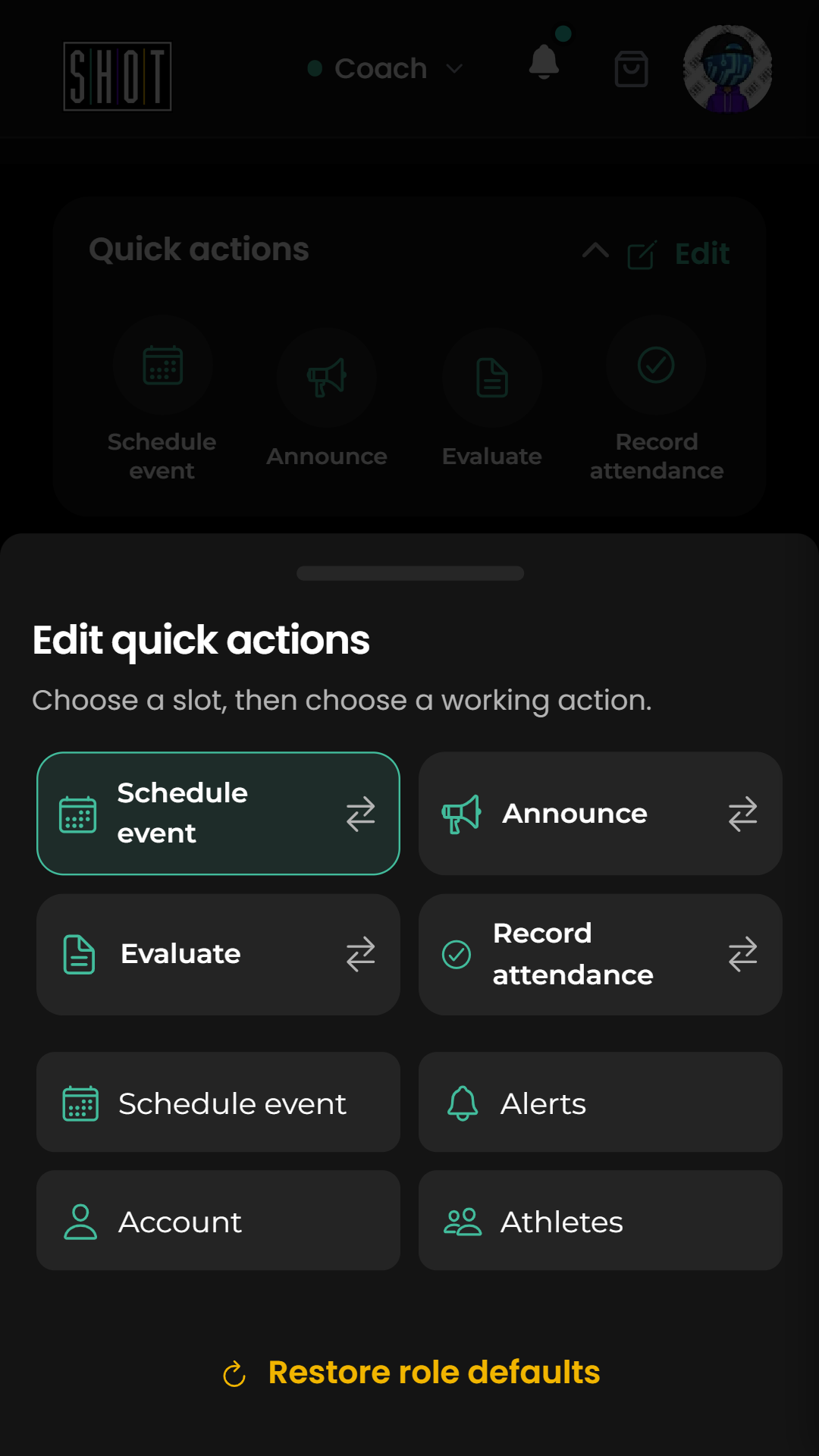
To inspect the available shortcuts, tap Edit, then a slot. Choosing a replacement changes that shortcut, so leave the drawer if you only want to look. The film opens the choices and returns without changing one.
Find a feature in MORE
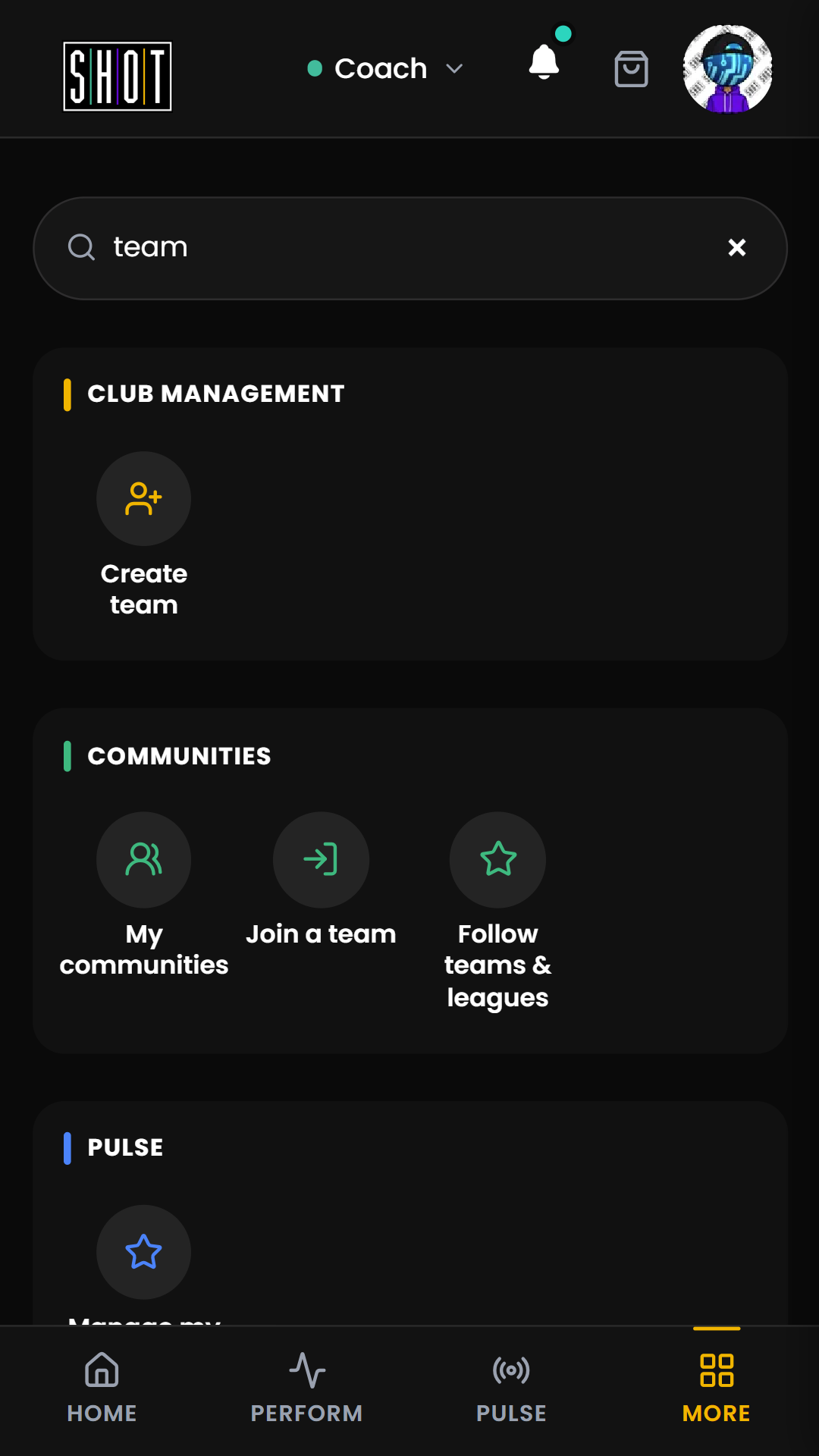
Tap MORE, the fourth item in the bottom navigation. Search SHOT sits above actions grouped by purpose.
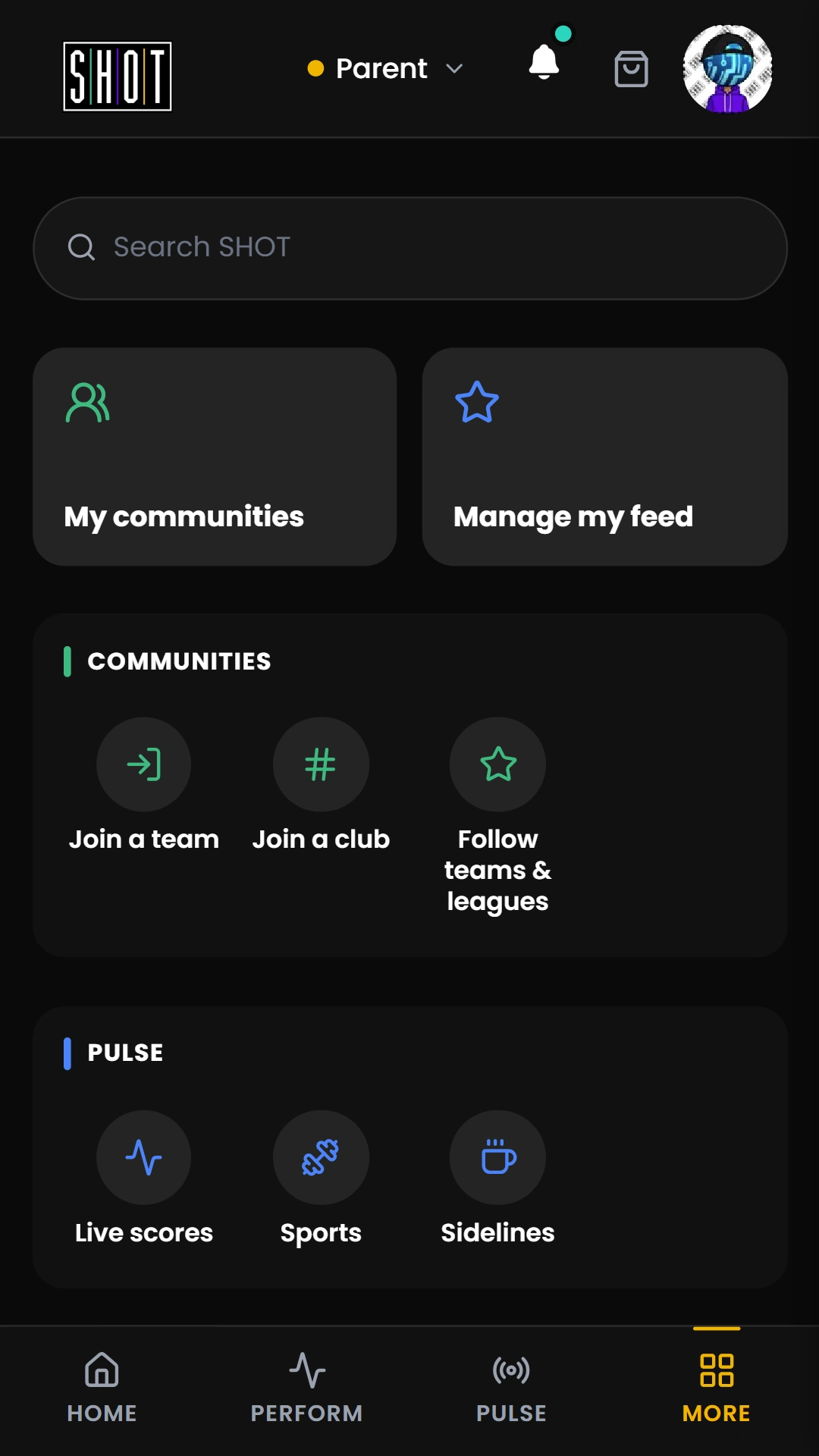
Search for team to narrow the menu. In the recorded Coach view, Communities includes My communities, Join a team and Follow teams & leagues. Clear the search to restore the full menu.
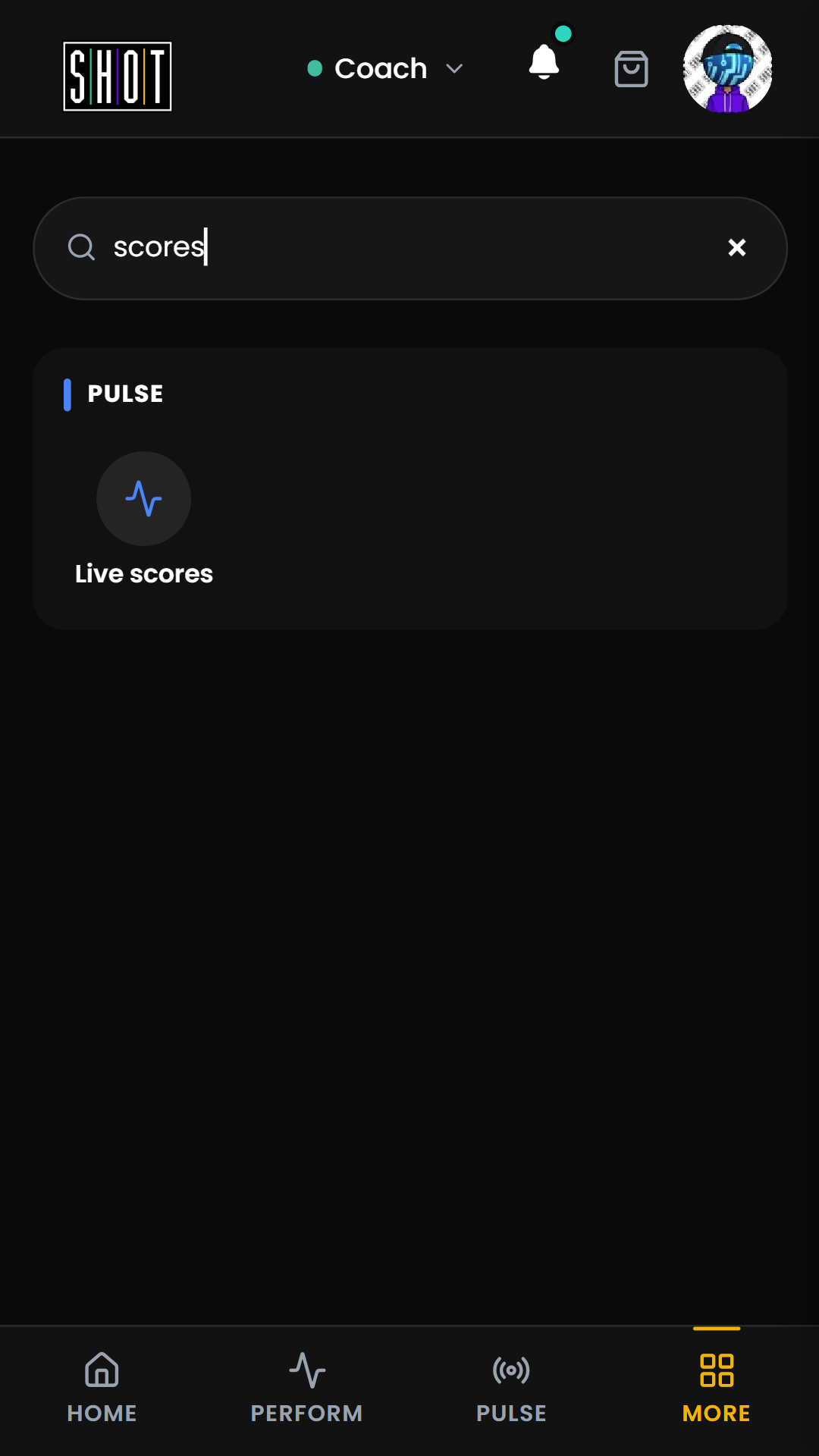
Try scores to find Live scores under PULSE. Search filters the menu; open the result to continue.
Find the team join screen
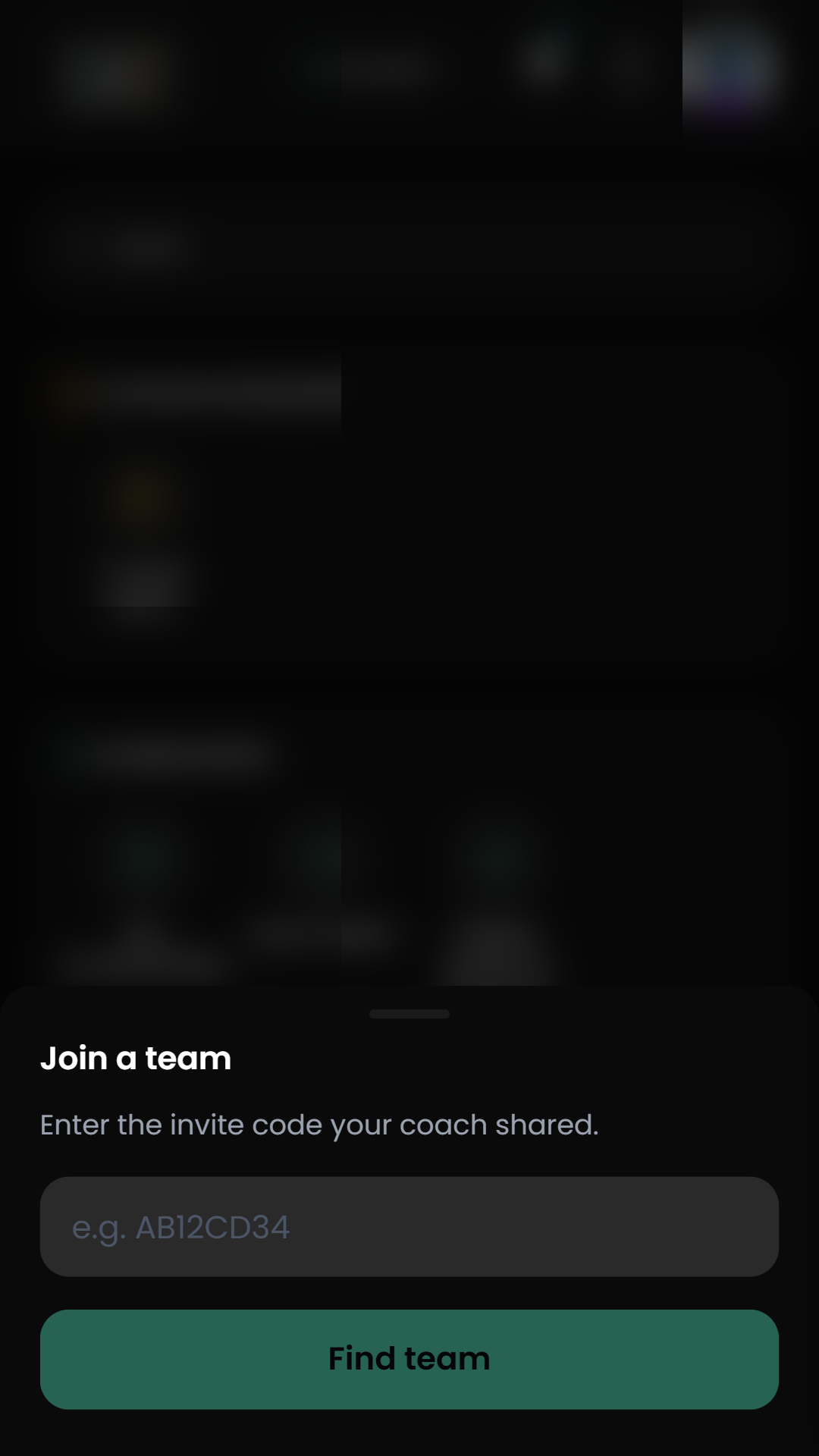
Open MORE, search for team, then tap Join a team under Communities. The current entry screen asks for the invite code shared by your coach.
Have your team's code or invitation ready and follow the instructions shown. If you have not received one, ask your coach for the right route. The film demonstrates the empty entry screen only. It does not submit a code or demonstrate a completed join.
Find your clubs and communities
Your communities appears on HOME. To browse community routes, use MORE and search team. To find the club-management route in the Coach view, clear the search and look for My clubs under Club management.
Switch your current role
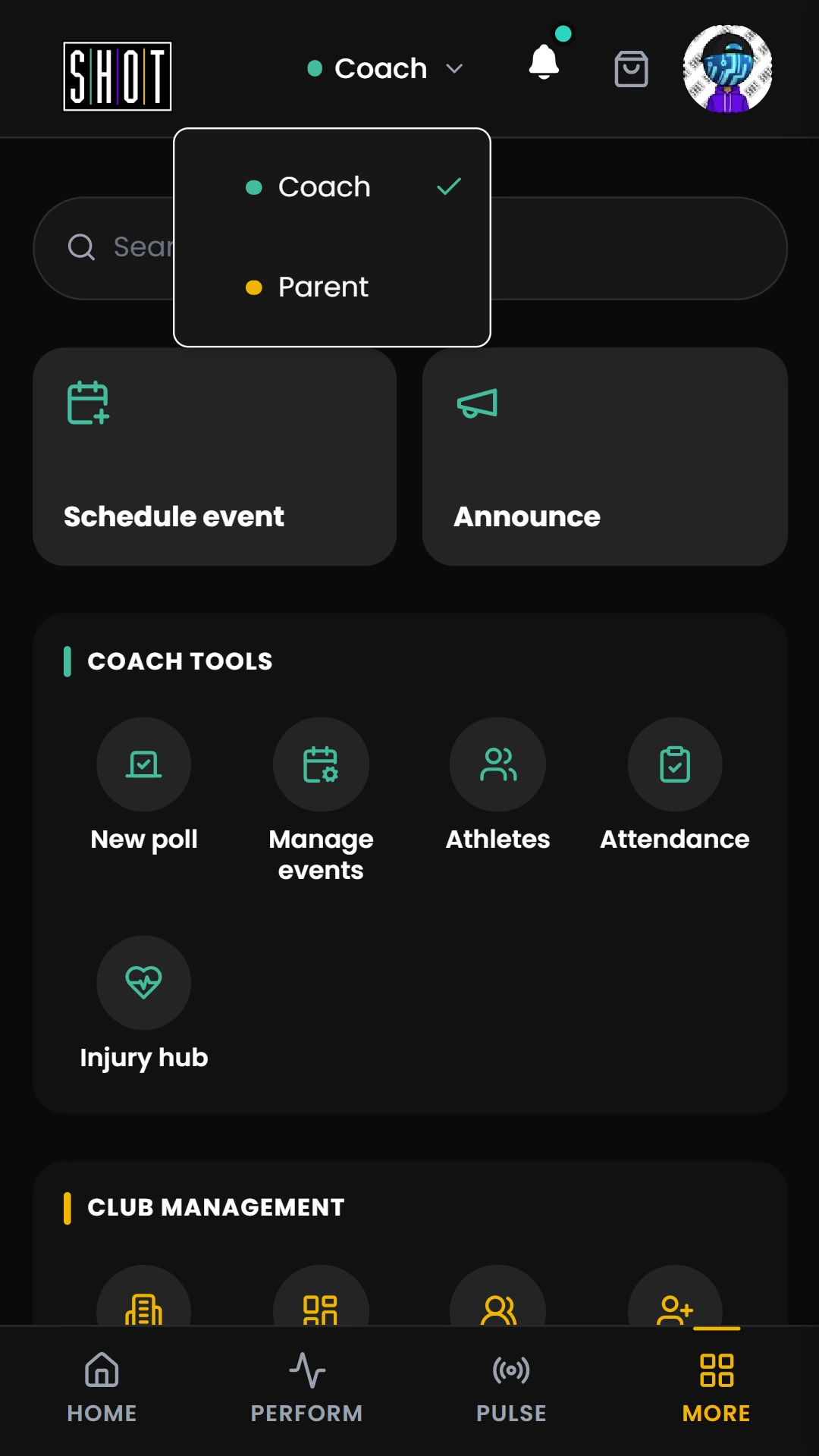
Check the role label at the top of the app. Tap it to see the roles already available on your account, then choose the view you need.
The recorded account has Coach and Parent. Choosing Parent updates the menu to show family actions. Switch back through the same label and choose Coach. Your available roles may differ.
Switching this view uses an existing role. It does not add a role or grant new permissions.
Browse the sport hub
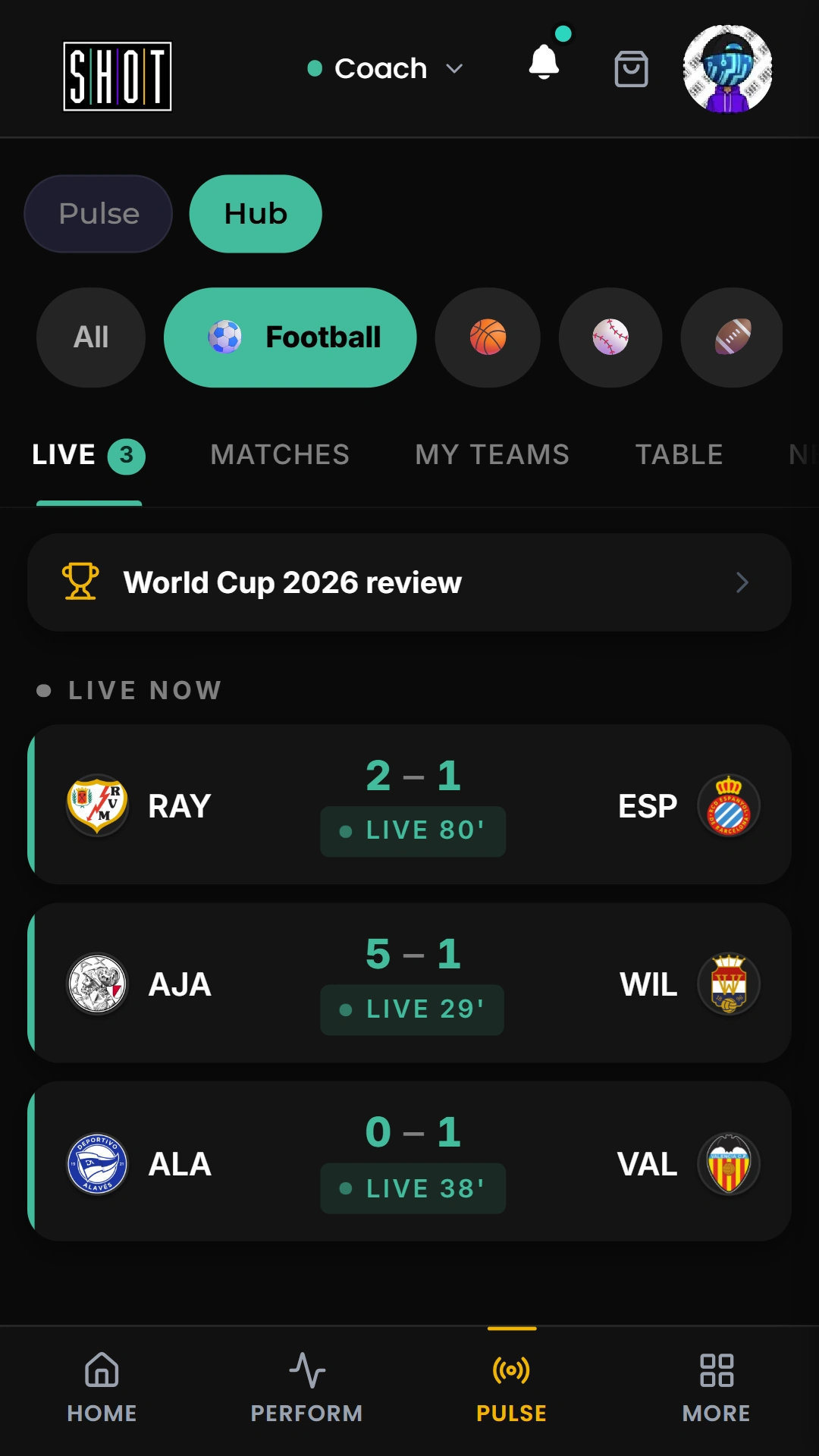
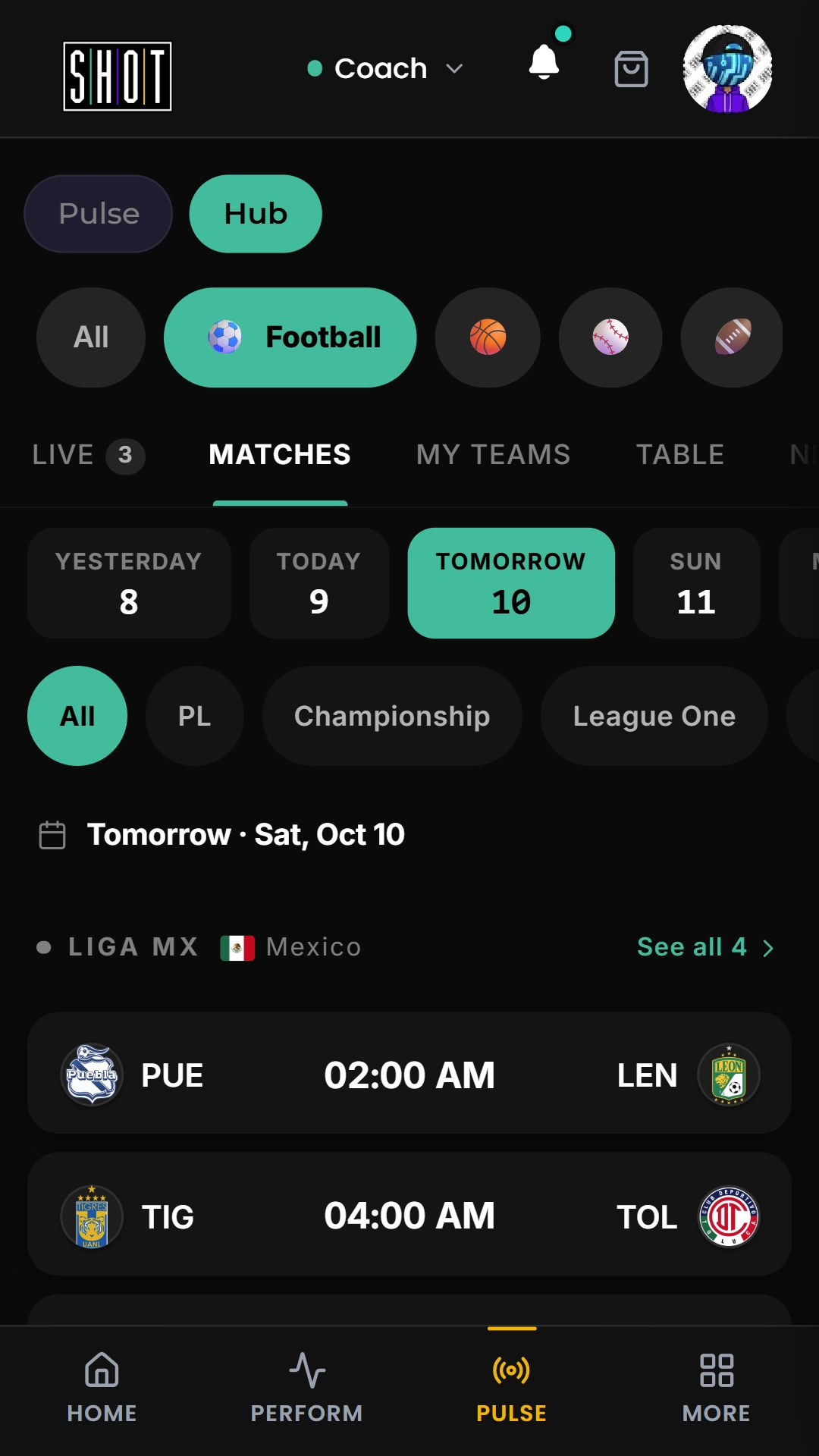
Tap PULSE in the bottom navigation, then choose Hub. Select a sport from the sport row to open its hub. Football is the example in this guide.
Open Matches to browse fixtures by date. Choose Today, Tomorrow or another available date control. Competition filters sit beneath the dates.
Games, scores and available competitions change. Check the selected sport and date when looking for a fixture.
Top questions from first-time testers
Do I need to pay before I can join a club or team?
No. If your club, school, or coach has invited you, use their invite link or join code first. Paid membership options only apply where a feature or account route explicitly asks for them. See Invite athletes for the normal join route.
Where do I find my next training session or match?
Open PERFORM from the bottom navigation and choose your team. Look for its Events section. See Running events for the fuller workflow.
What happens for athletes aged 13 to 18?
Teen athletes can have their own Sport Head account. A parent or guardian can be linked so they can see events and coach feedback, while the athlete still completes their own evaluations. See Parents (13-18) for the linked-parent route.
What should parents do for athletes under 13?
Parents should create or manage the child profile from the parent account. Coaches should share the invite route with the parent, not directly with the child. See Parents (under 13) for the child-profile flow.
Why can I see PULSE if I am not in a team yet?
PULSE is the sport hub for news, scores, standings, and following sports. Team activity, evaluations, attendance, and coach feedback appear once you join or manage a team. See Fans and supporters for the read-only route before team membership.
How SHOT Clubhouse works
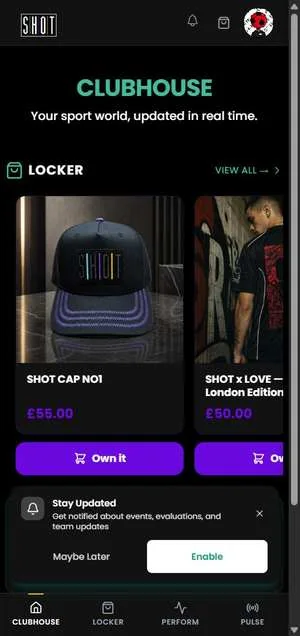
The current mobile app has four items in its bottom navigation:
1. Download or open SHOT Clubhouse
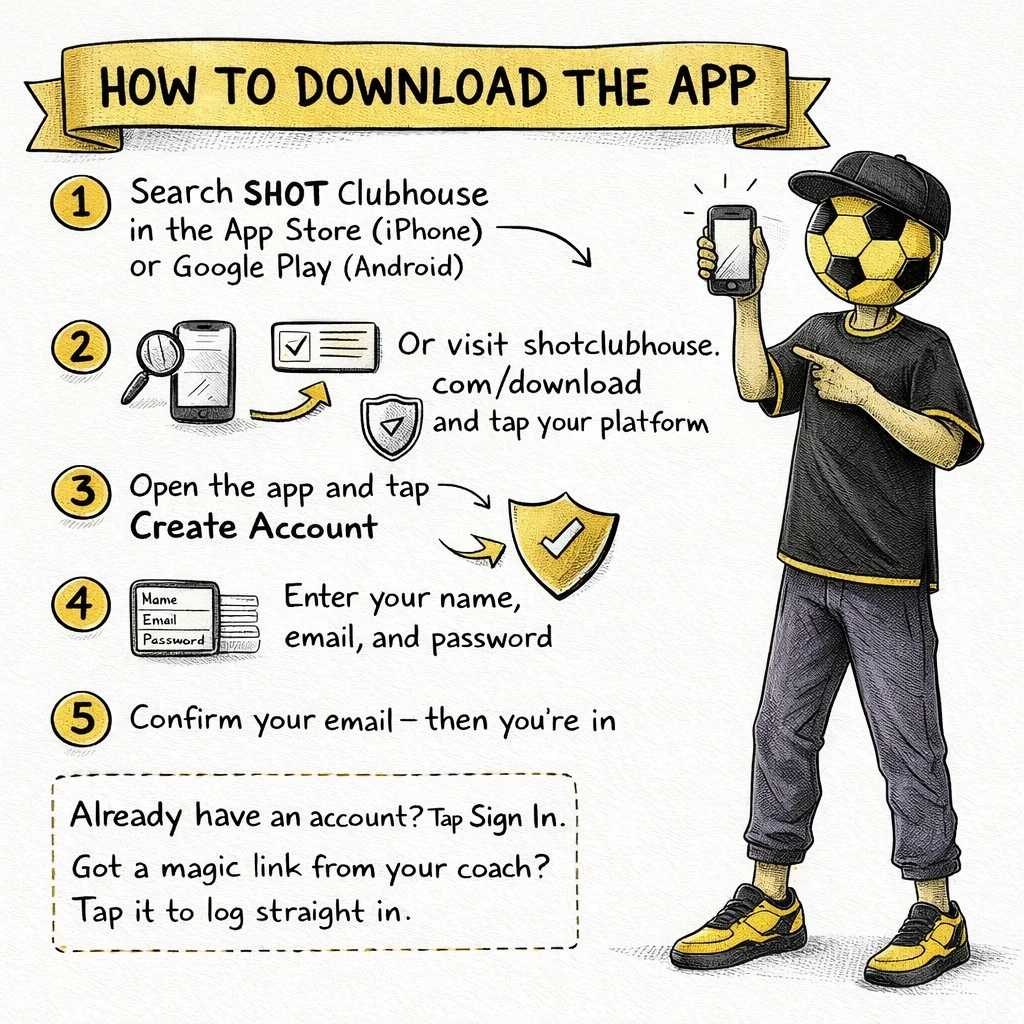
SHOT Clubhouse works on web, iOS, and Android. Use the web app in any browser, or download the native app from your device's app store.
2. Your Sport Head
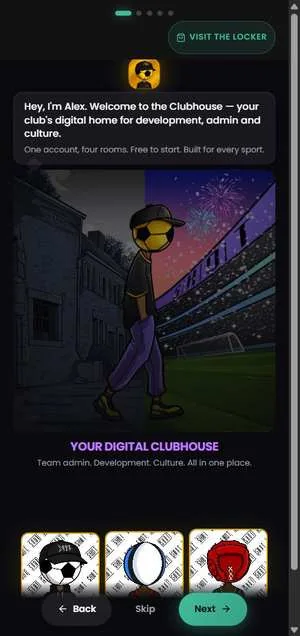
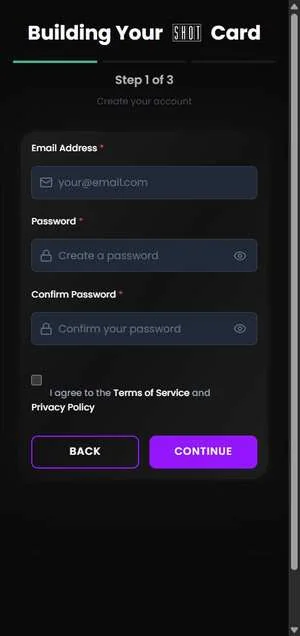
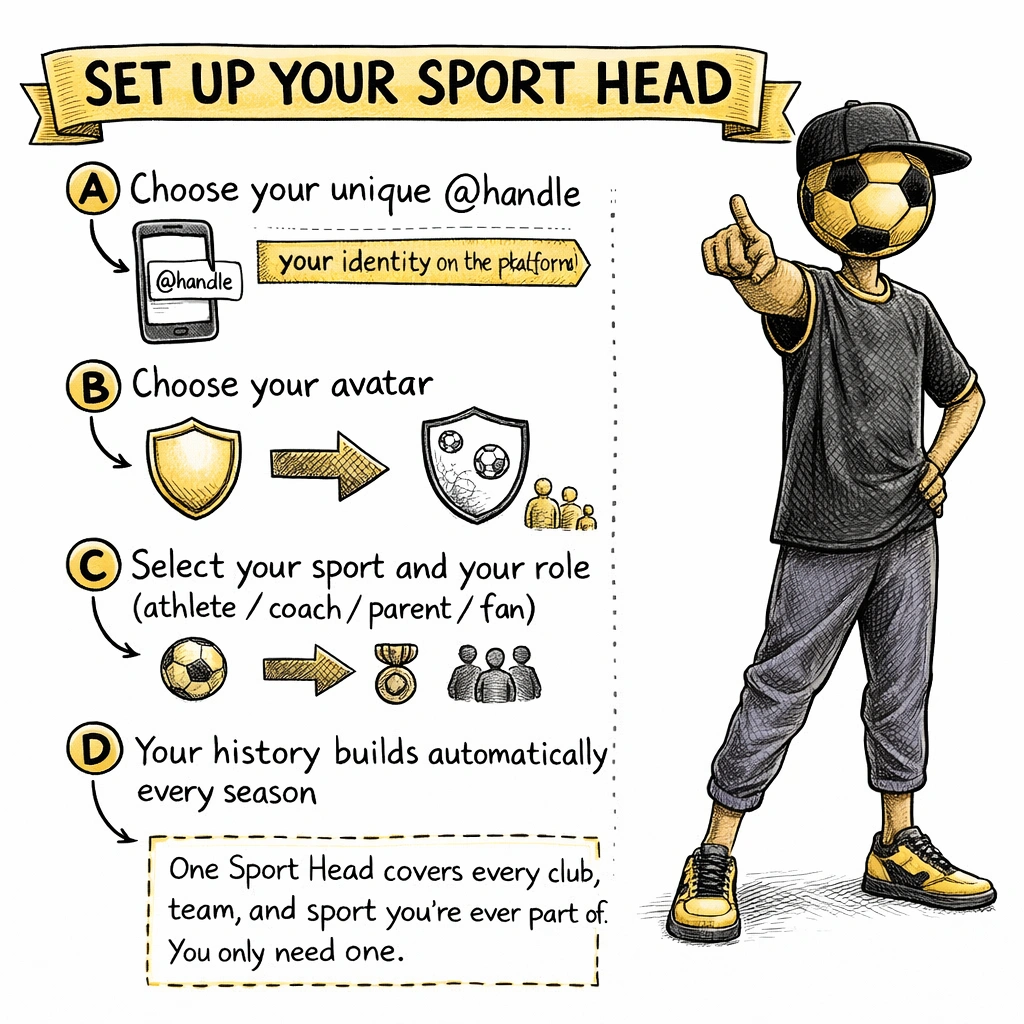
Your Sport Head is your identity within SHOT Clubhouse — the profile that clubs, coaches, and teams see when you join, and the record that tracks your history across everything you do on the platform.
Setting up your Sport Head
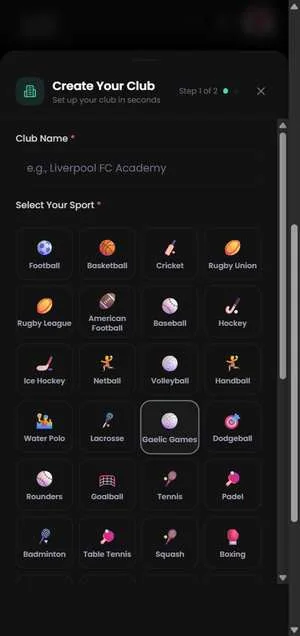
3. Create a club
Club admin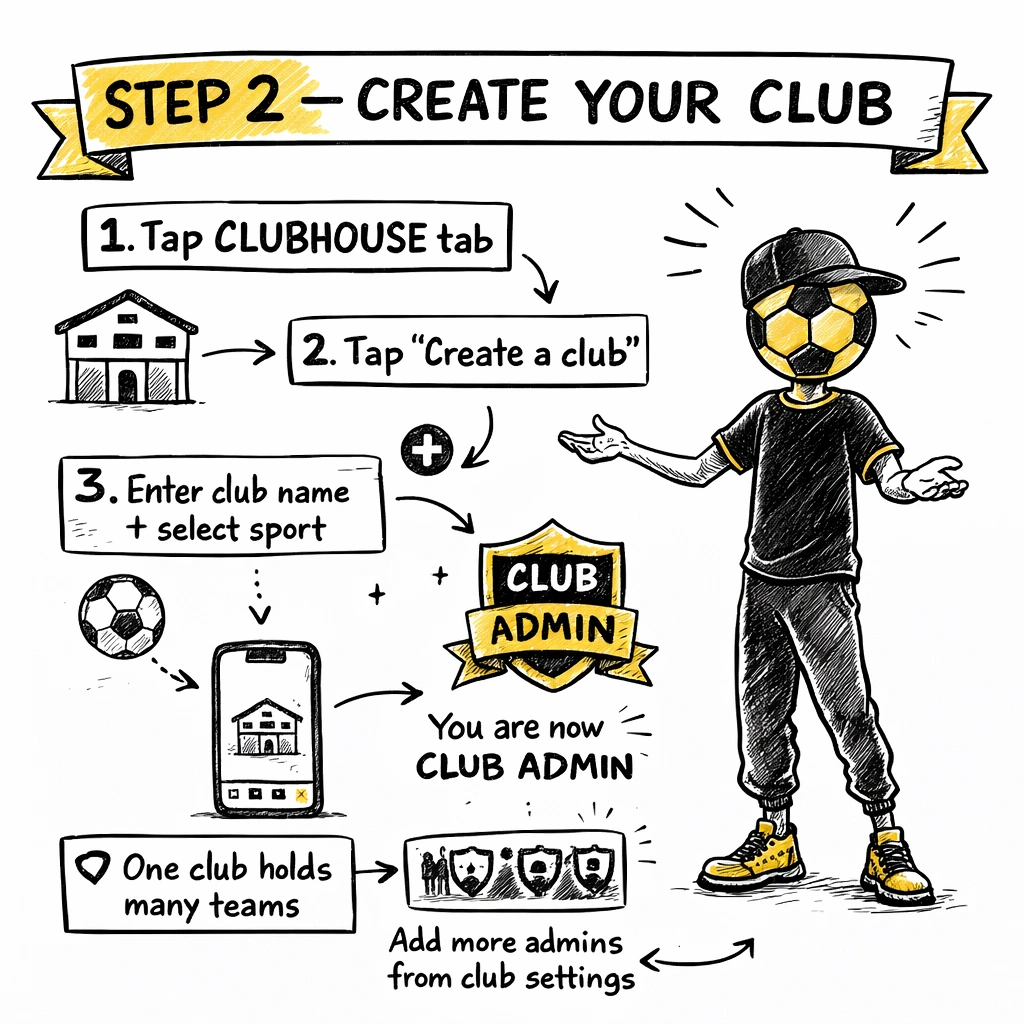
A club is the top-level organisation on SHOT Clubhouse. It holds one or more teams. If you run a football club with U9s, U11s, and a Women's First team, each of those is a team within your single club.
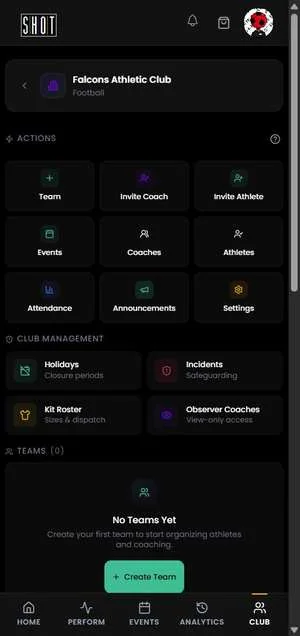
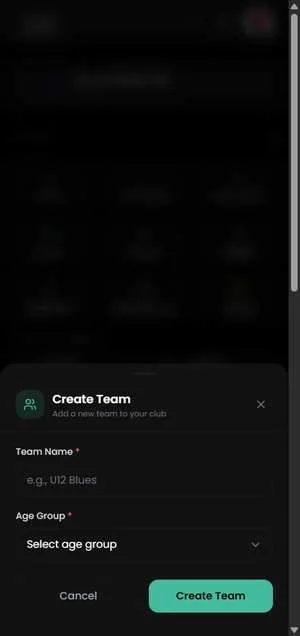
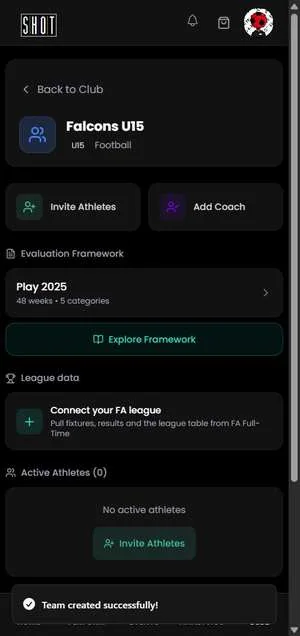
4. Create a team
CoachTeams sit inside your club. Each team has its own squad, events, and evaluation framework. You can have as many teams as you need within one club.
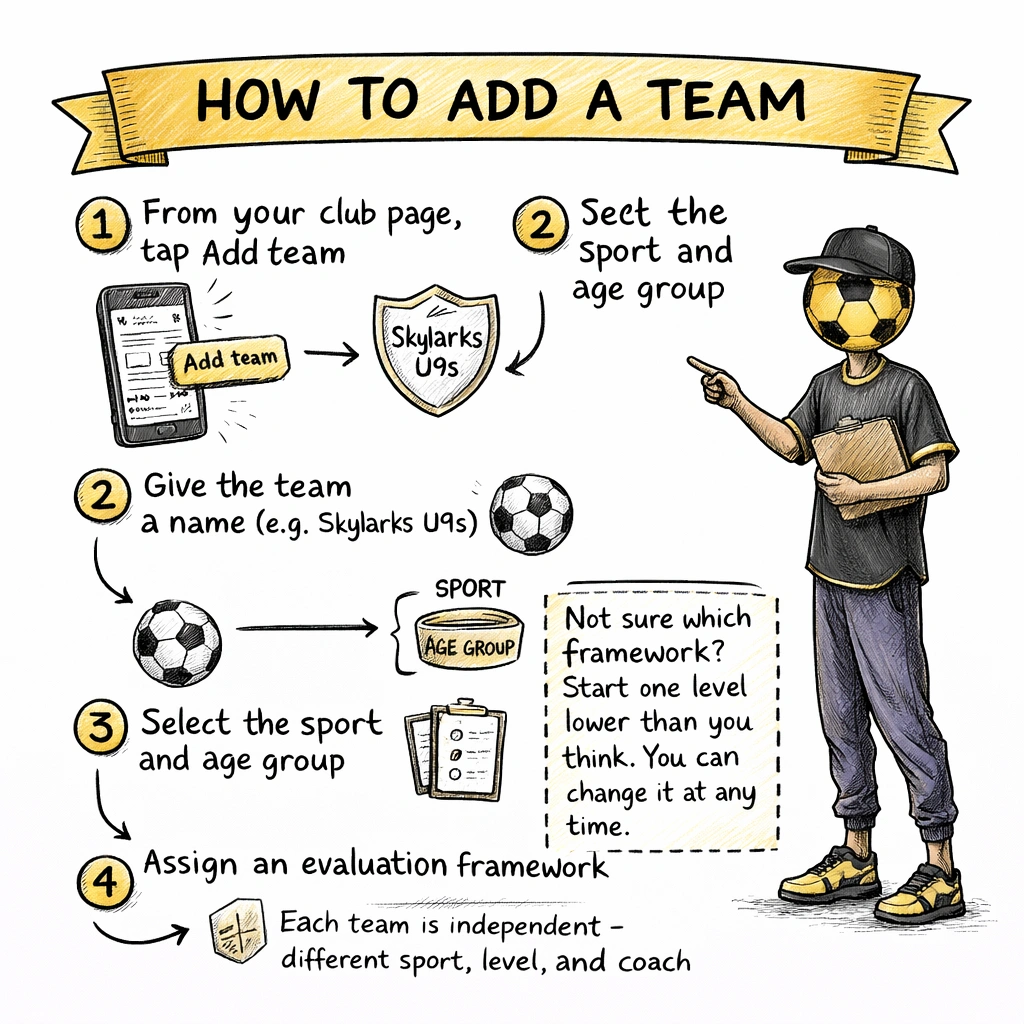
5. Choose an evaluation framework
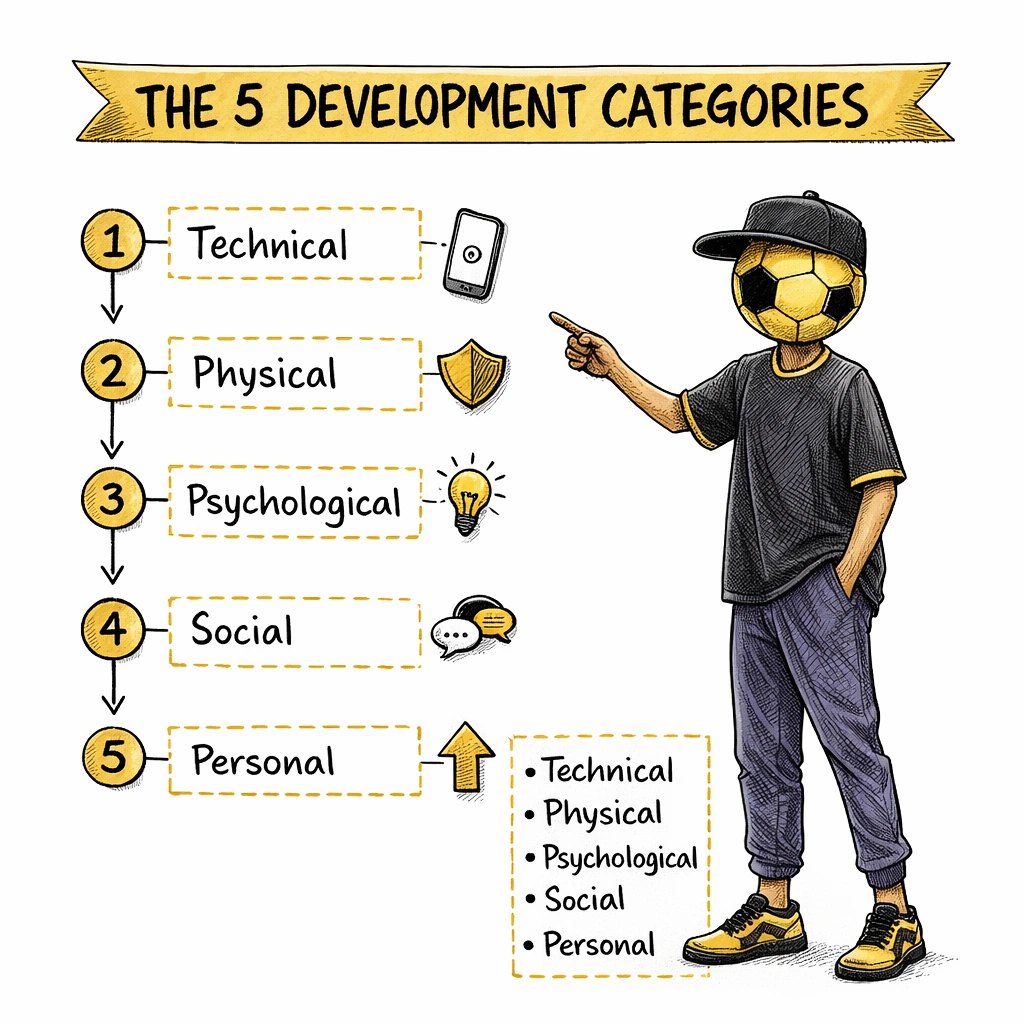
CoachThe framework is the structured development programme your team follows across the season. It determines what questions athletes answer each week and how their progress is tracked across five categories: Technical, Physical, Psychological, Social, and Personal.
SHOT Clubhouse covers 47 sports with 329 frameworks: seven development levels per sport. When you create a team and choose your sport, all available frameworks for that sport appear.
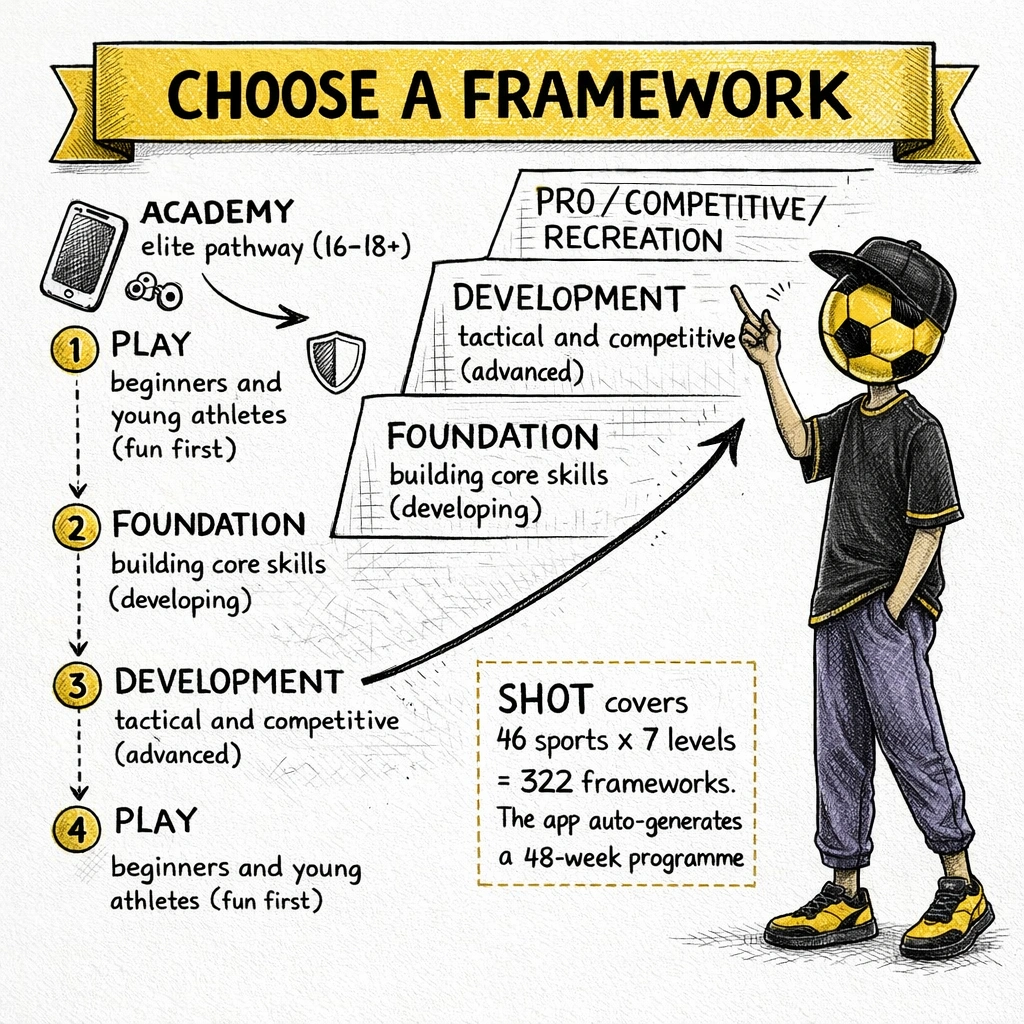
The seven levels
Every sport follows the same pathway: Play · Foundation · Development · Academy · Pro · Competitive · Recreation. Choose the level that matches where your athletes are now. You move levels at the start of a new season.
6. Invite athletes
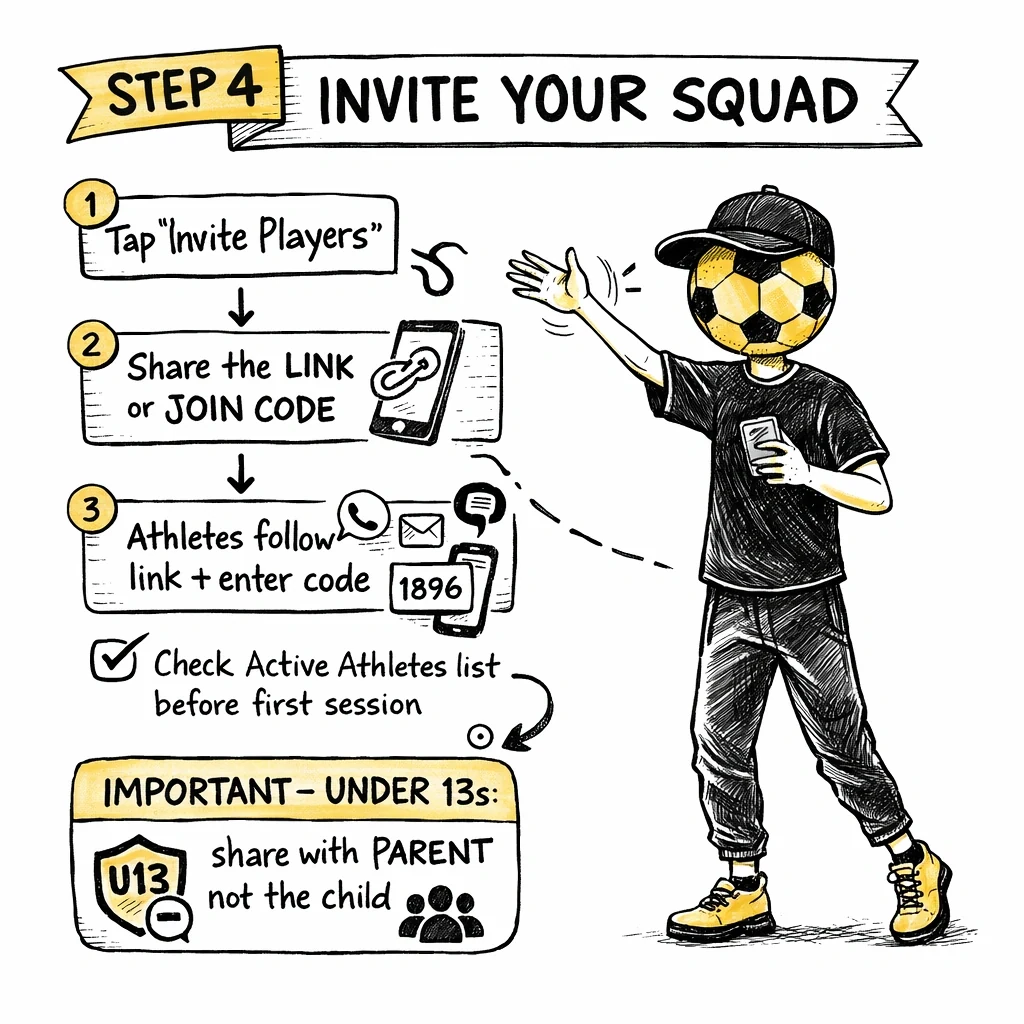
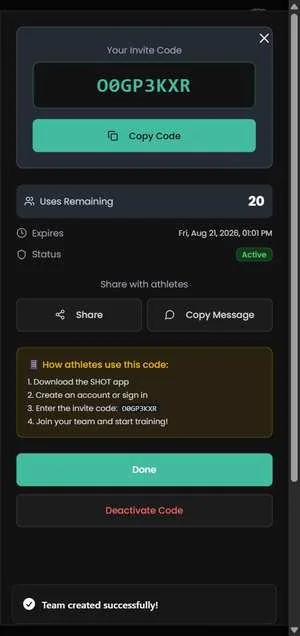
CoachFrom your team admin screen, tap Invite Players. This generates an invite link and join code you can share with athletes and their parents.
7. Add coaches
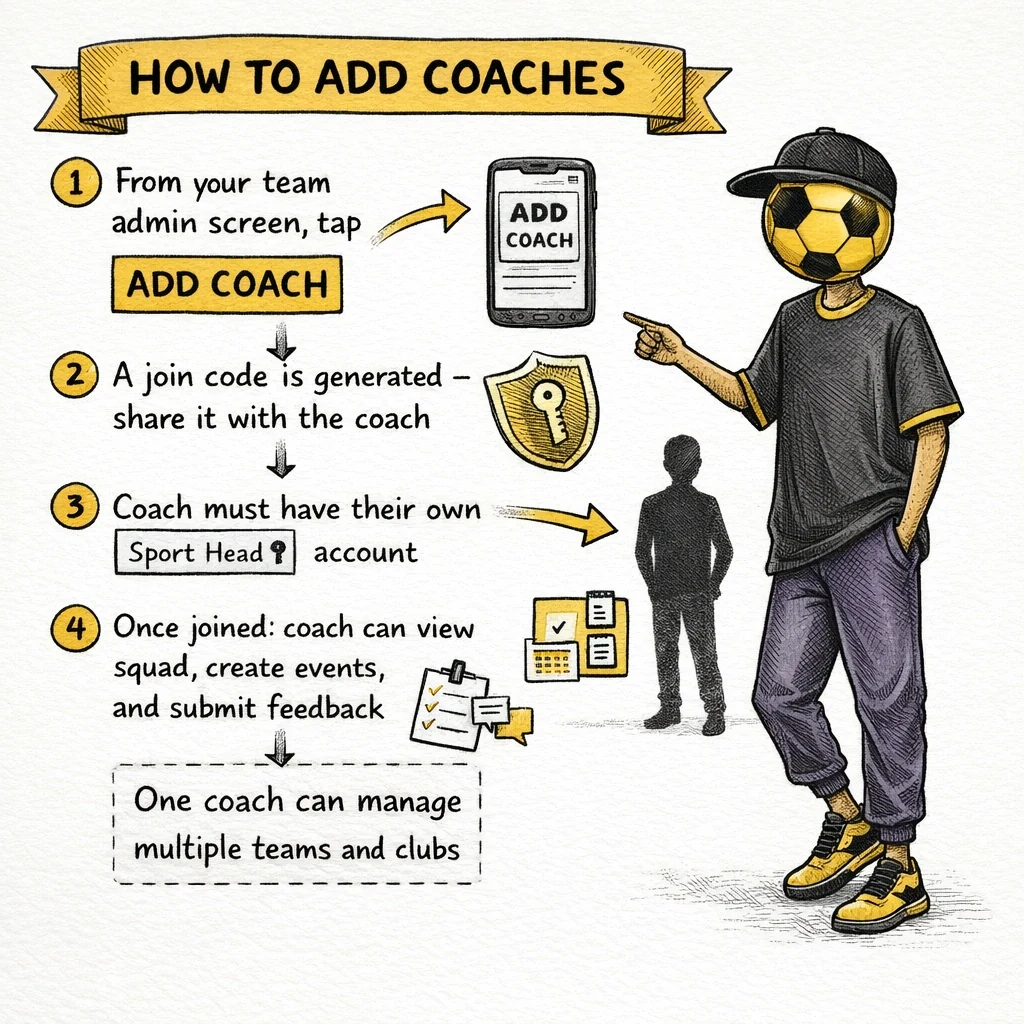
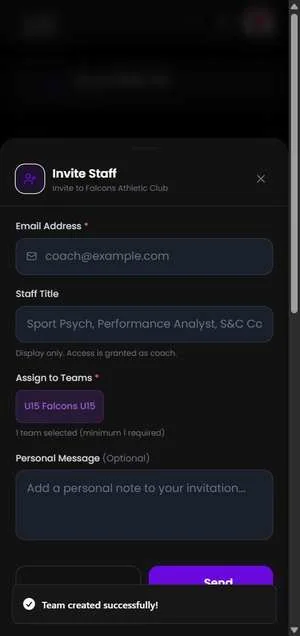
Club admin CoachFrom your team admin screen, tap Add Coach. A join code is generated that you send to the coach. Coaches must have a Sport Head account before they can join a team.
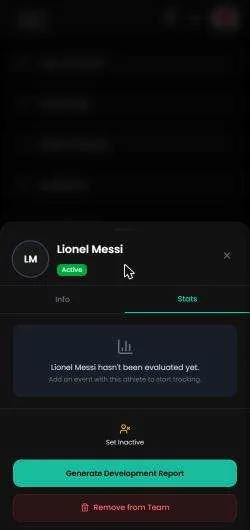
Once a coach joins your team they can view the full squad, create and publish events, and complete Coach Feedback evaluations for each athlete. A coach can manage multiple teams across multiple clubs from a single Sport Head.
8. Running events
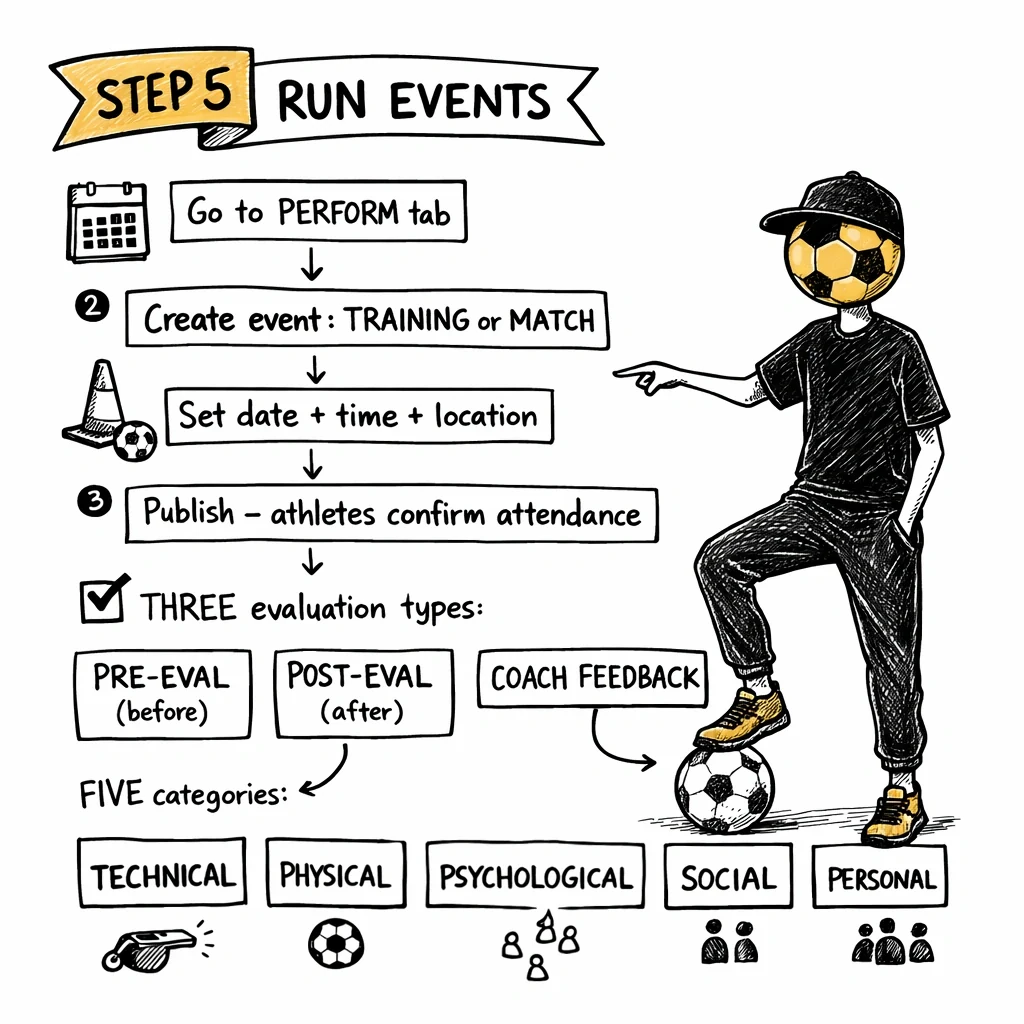
CoachEvents are the core unit of activity in SHOT Clubhouse. Every training session and match is an event. Events trigger evaluations for athletes and create the records that build their development history.
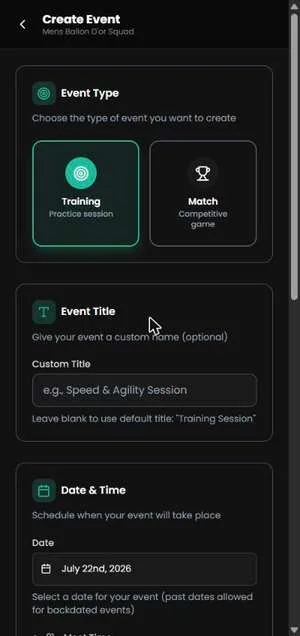
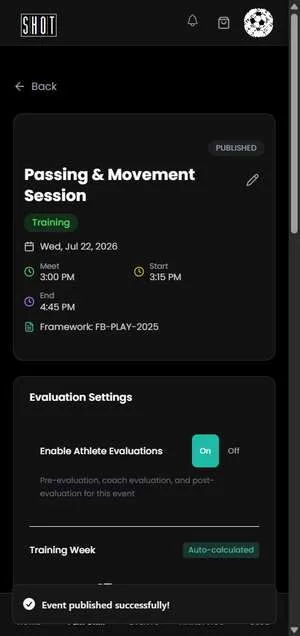
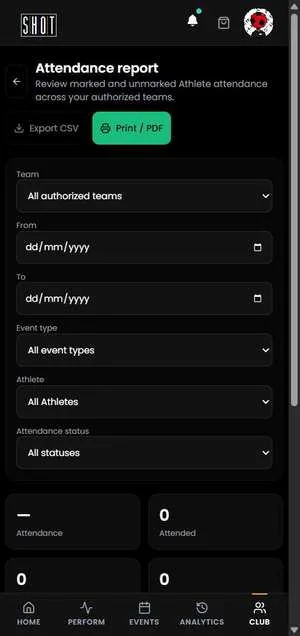
Creating an event
Running events every week
Most coaches create a new event for each training session and match as part of their regular week. The framework handles the rest — the questions change automatically each week based on which block is active. You do not need to set this manually or prepare questions in advance.
The event dashboard
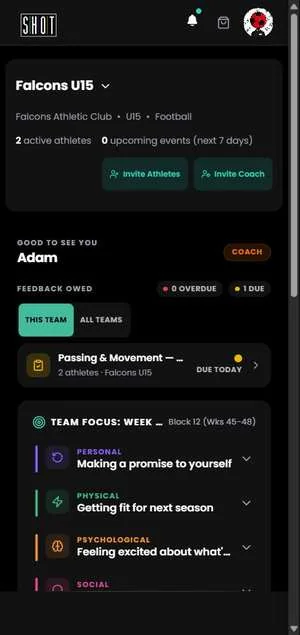
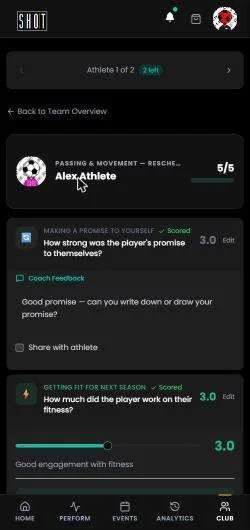
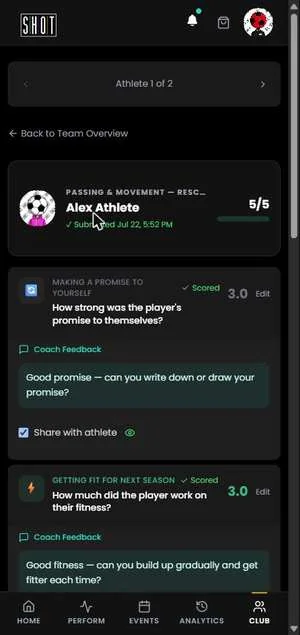
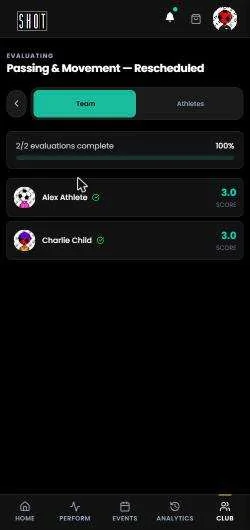
Each published event gives the coach a dashboard with four tabs: Overview, Pre-Eval (who has completed theirs), Post-Eval (same), and Coach Feedback (where the coach enters ratings for each athlete).
9. Running evaluations
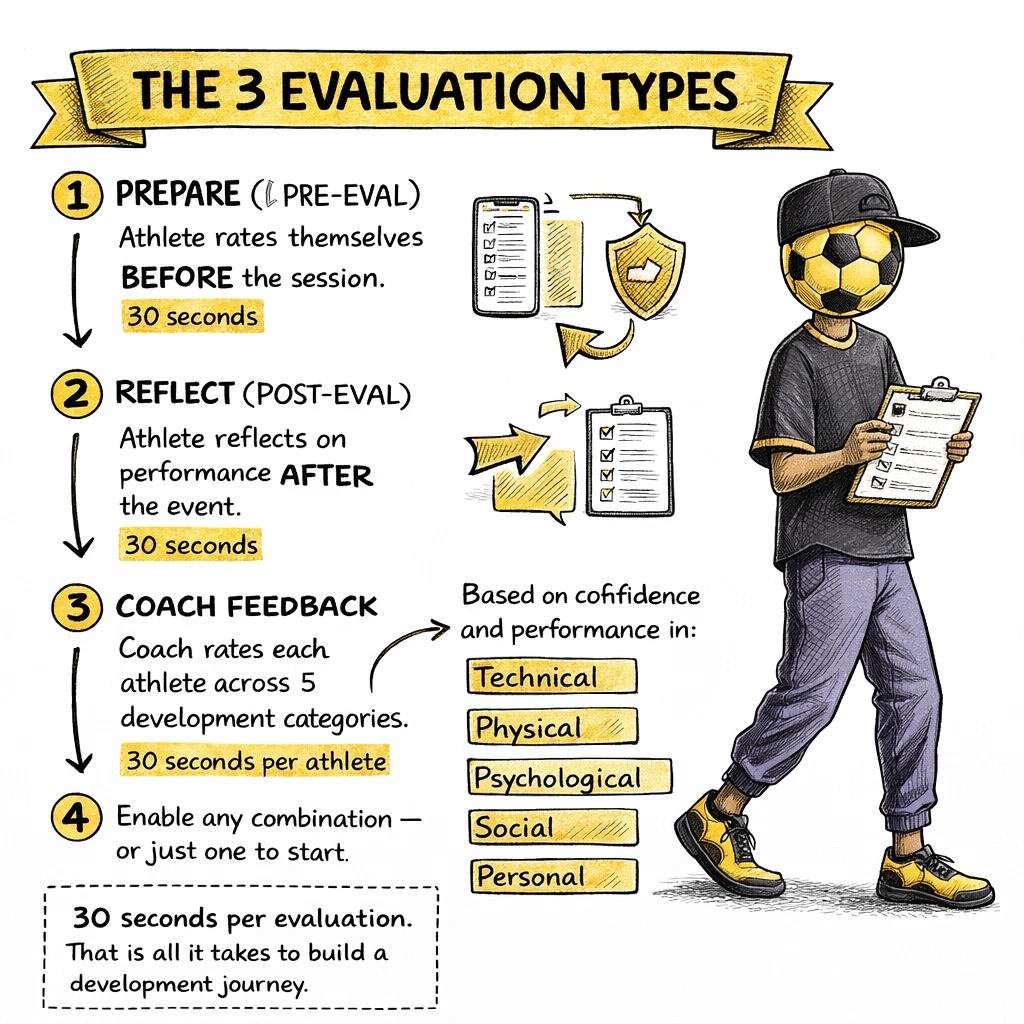
Evaluations are how development is tracked. They happen around each event — before, after, and from the coach. The questions come from the framework your team is following and change week by week.
Choose your evaluation intensity
When you set up a team, you decide which evaluation types to enable. You can run all three, or start with just Coach Feedback if self-evaluation feels like too much for your group at first. These settings can be changed at any time from team settings.
Pre-Eval (Prepare)
The athlete rates themselves before a session or match. Sets mindset and intentions for the event.
Completed by: Athletes
Post-Eval (Reflect)
The athlete reflects on their performance after the event. Builds self-awareness over time.
Completed by: Athletes
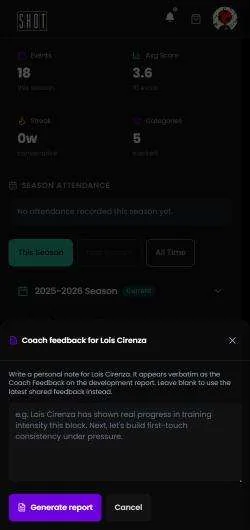
Coach Feedback
The coach evaluates each athlete across the five development categories. Athletes and parents (under 18) can view the result.
Completed by: Coaches
The five development categories
What athletes and parents see
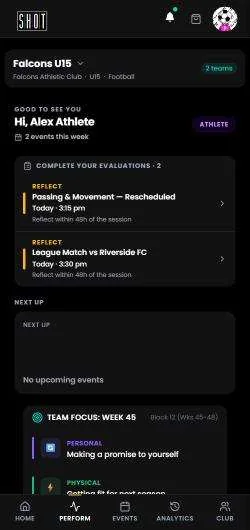
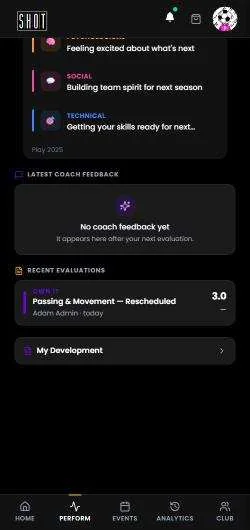
Athletes see their evaluation history in the Perform tab — total events attended, evaluations completed, and rolling average score. When coach feedback is released, athletes see their Strengths and Focus Areas framed as development guidance, not a grade. For athletes under 18, parents see the same coach feedback through their linked account.
Multi-sport providers
School · Academy · Multi-sport clubIf you run programmes across more than one sport — a school with football, swimming, and athletics, or a multi-sport academy — SHOT Clubhouse handles this in two ways. Choose the structure that fits how your organisation works.
Option A: One club per sport
Create a separate club for each sport. Each club has its own teams, coaches, and framework. Athletes who participate in multiple sports hold separate team memberships within different clubs — but they use one Sport Head across all of them.
Example — secondary school
"Riverside School FC" for football, "Riverside School Swimming" for swimming, "Riverside School Athletics" for track and field. Each club has its own admin and coaches. A student who swims and plays football joins both clubs with one account.
Option B: One club, multiple teams across different sports
Create one club ("Riverside Sports Academy") and add teams for each sport within it. Each team selects its own sport and framework independently. The club admin has oversight of all teams in one place.
Example — multi-sport junior club
"Springfield Sports Club" contains "Springfield U13 Football", "Springfield U13 Tennis", and "Springfield U13 Swimming" as separate teams. One club admin manages all three. Coaches are assigned per team.
Frameworks across sports
Each team in your club can run a completely different sport and level. A school with a Year 7 football team on Play, a Year 10 athletics squad on Development, and a sixth-form tennis programme on Competitive sets each up independently — the framework for each advances automatically through its own season, separate from the others.
Multiple clubs and memberships
One Sport Head is all you need, regardless of how many clubs, sports, or roles you hold. SHOT Clubhouse is built for people whose sporting lives span more than one team or organisation.
For athletes
An athlete can be a member of multiple teams across multiple clubs and sports simultaneously. Their Perform tab shows all teams and clubs they belong to, organised separately. Evaluation history from different teams does not mix — each team's data is kept distinct.
For coaches
A coach can manage multiple teams across multiple clubs and sports from one account. Switching between them is instant — each team's event dashboard and athlete list is separate. There is no limit on the number of clubs or teams a coach can manage.
For parents
A parent account can be linked to multiple children in different clubs and sports. Each child's profile is managed separately within the same parent account. For children under 13, the parent account is the primary access point — all coach feedback, events, and notifications come through to the parent directly.
Account switching
If you hold multiple roles — coaching one club while your child plays for another — you can switch between your coach view and your parent view from within the same Sport Head. No separate logins needed.
For coaches
Coach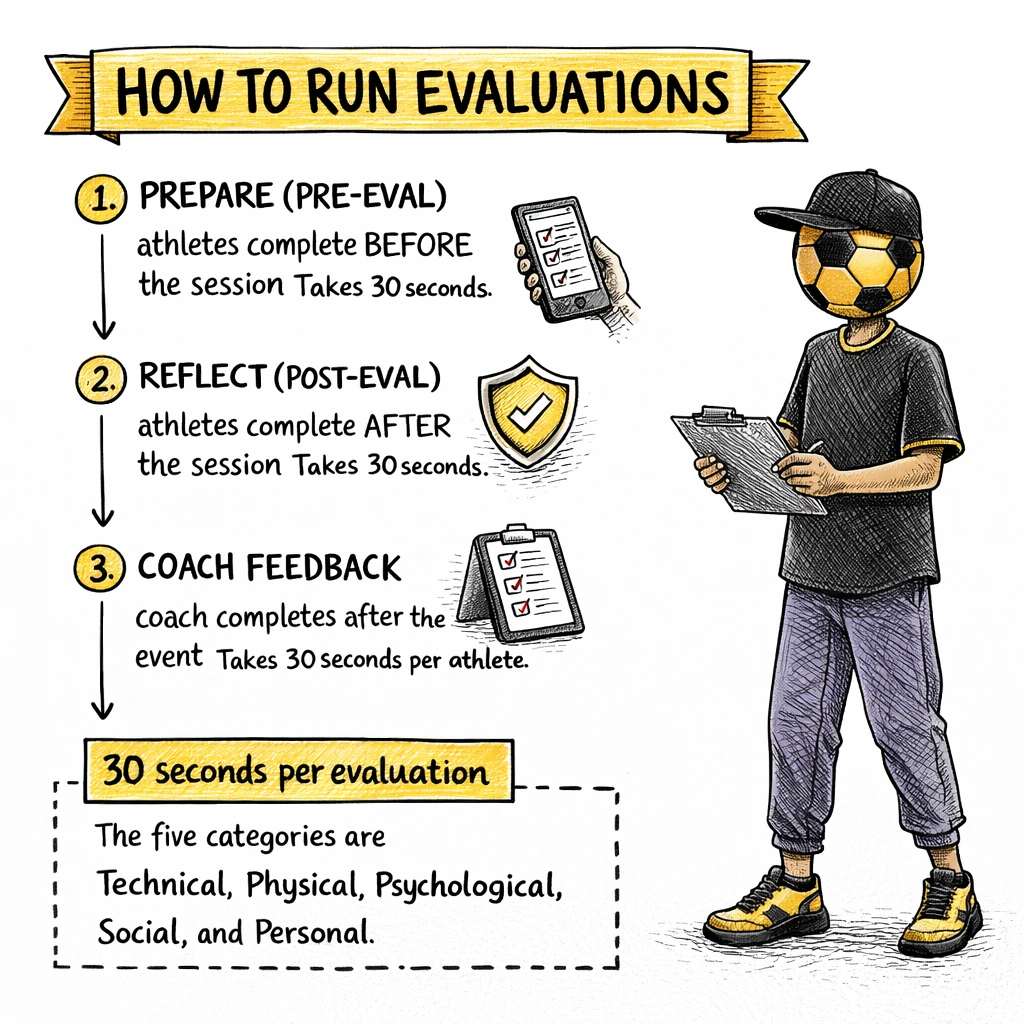
SHOT Clubhouse is your session-to-session development tool. Here is the full picture of what you do and when.
Before the season
Each week
For club administrators
Club admin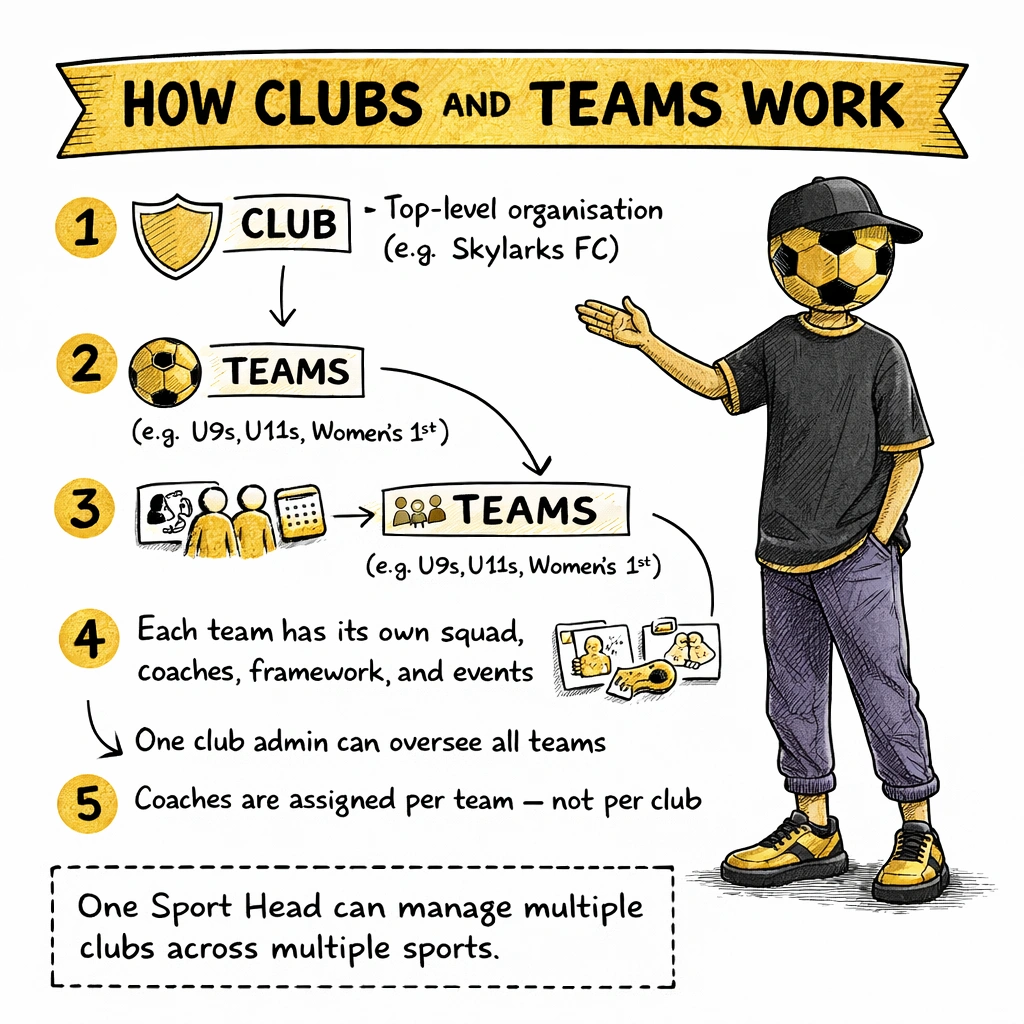
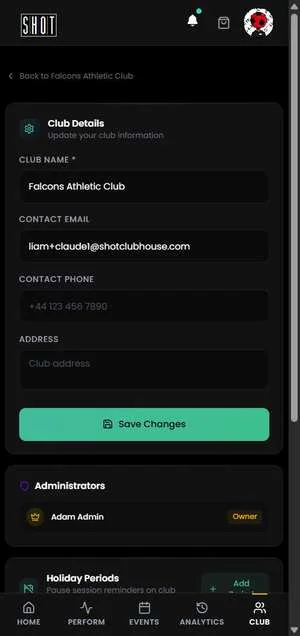
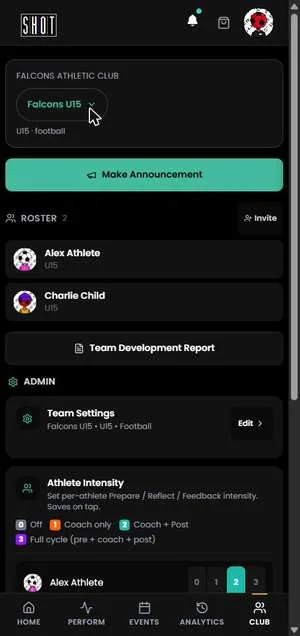
Club admins manage the top-level club account and have visibility across all teams within the club. One Sport Head can manage multiple clubs across multiple sports.
For athletes
Athlete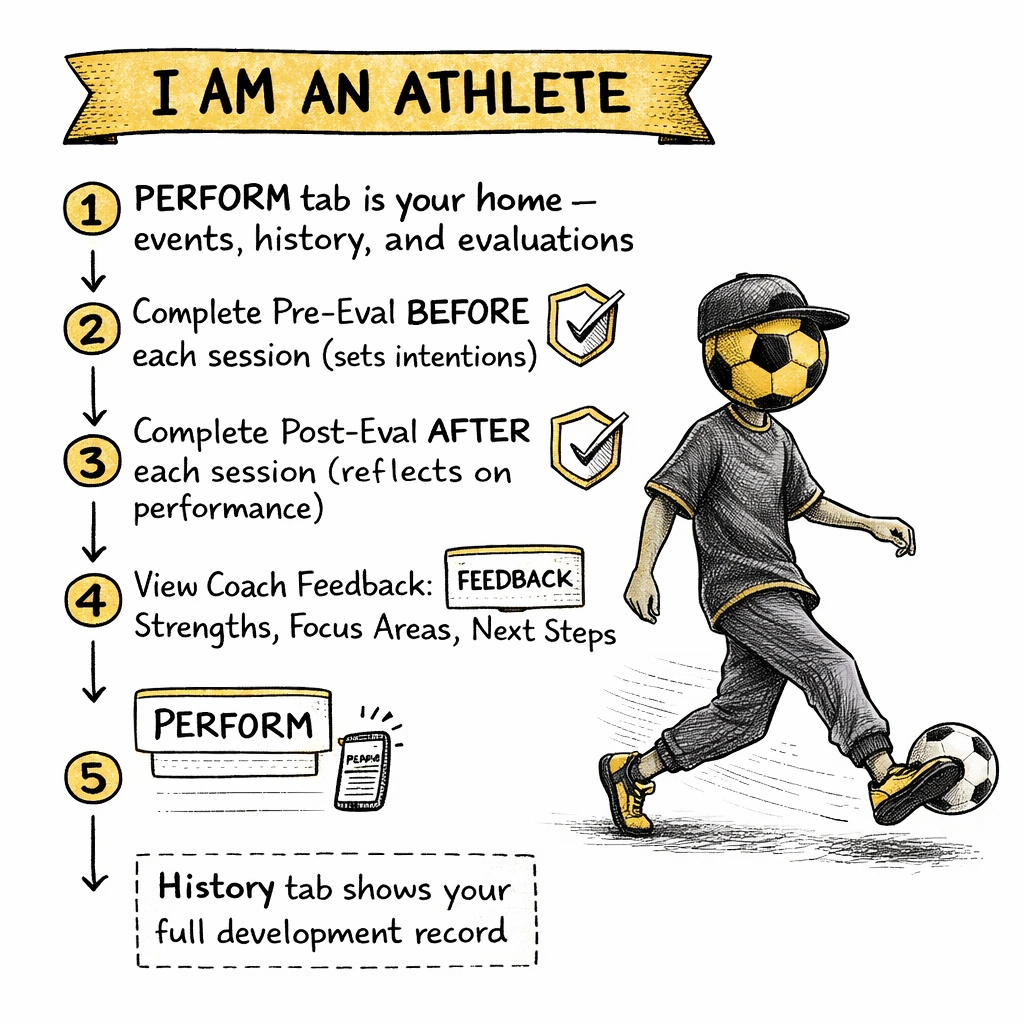
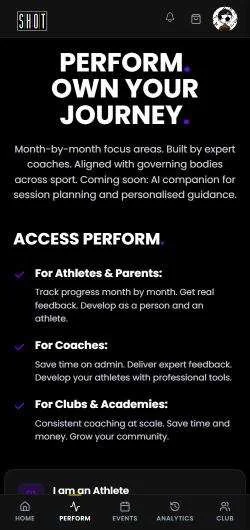
As an athlete, your SHOT Clubhouse experience lives in the Perform tab. Everything tied to your development — evaluations, history, and team events — is there.
For parents — child under 13
Parent · Under 13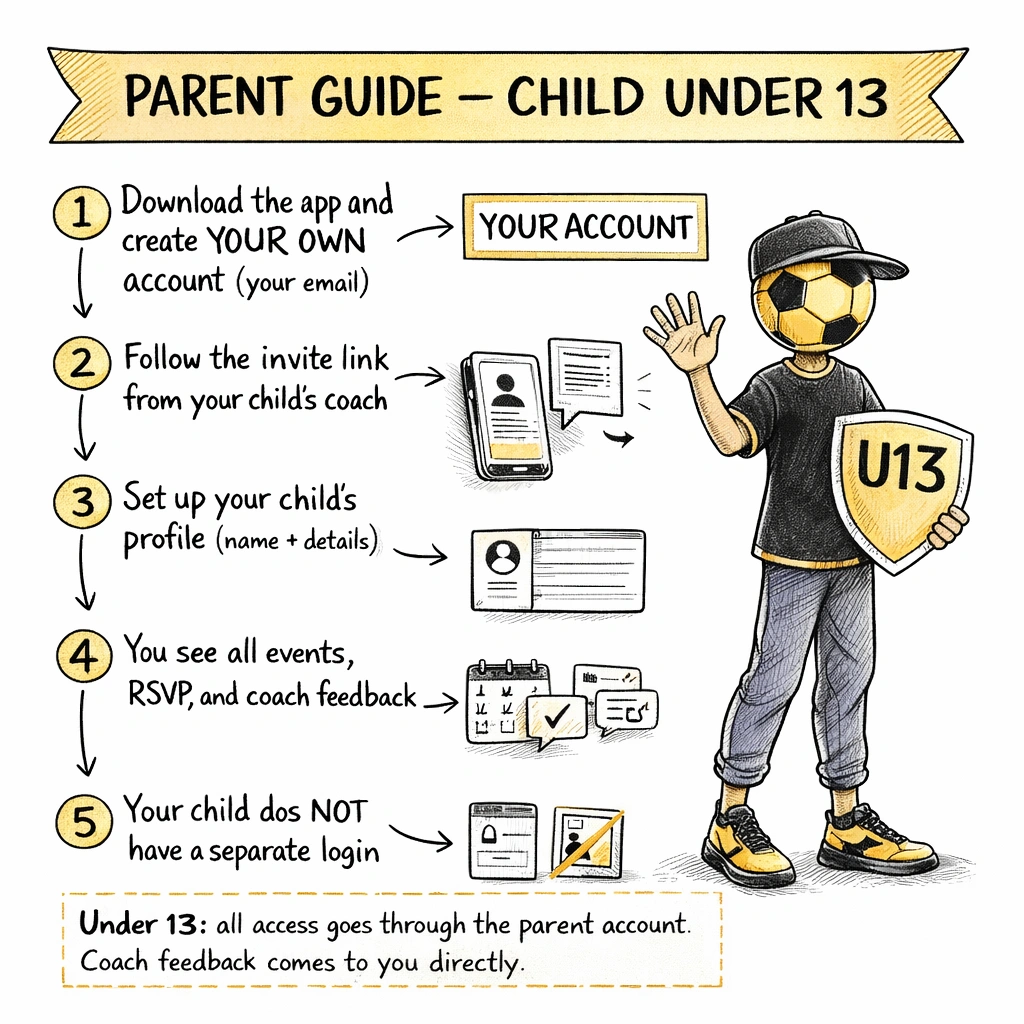
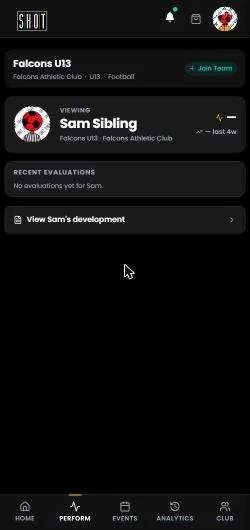
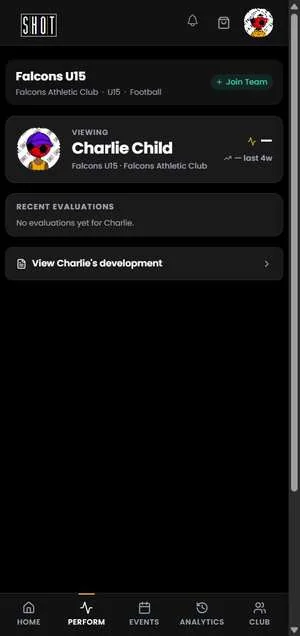
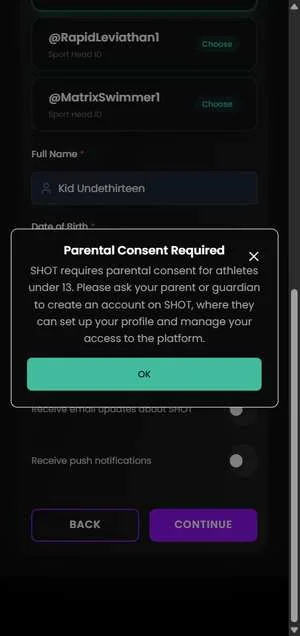
If your child is under 13, their SHOT Clubhouse account is managed through you. You create and control the account — your child does not have independent access.
For parents — child aged 13 to 18
Parent · 13–18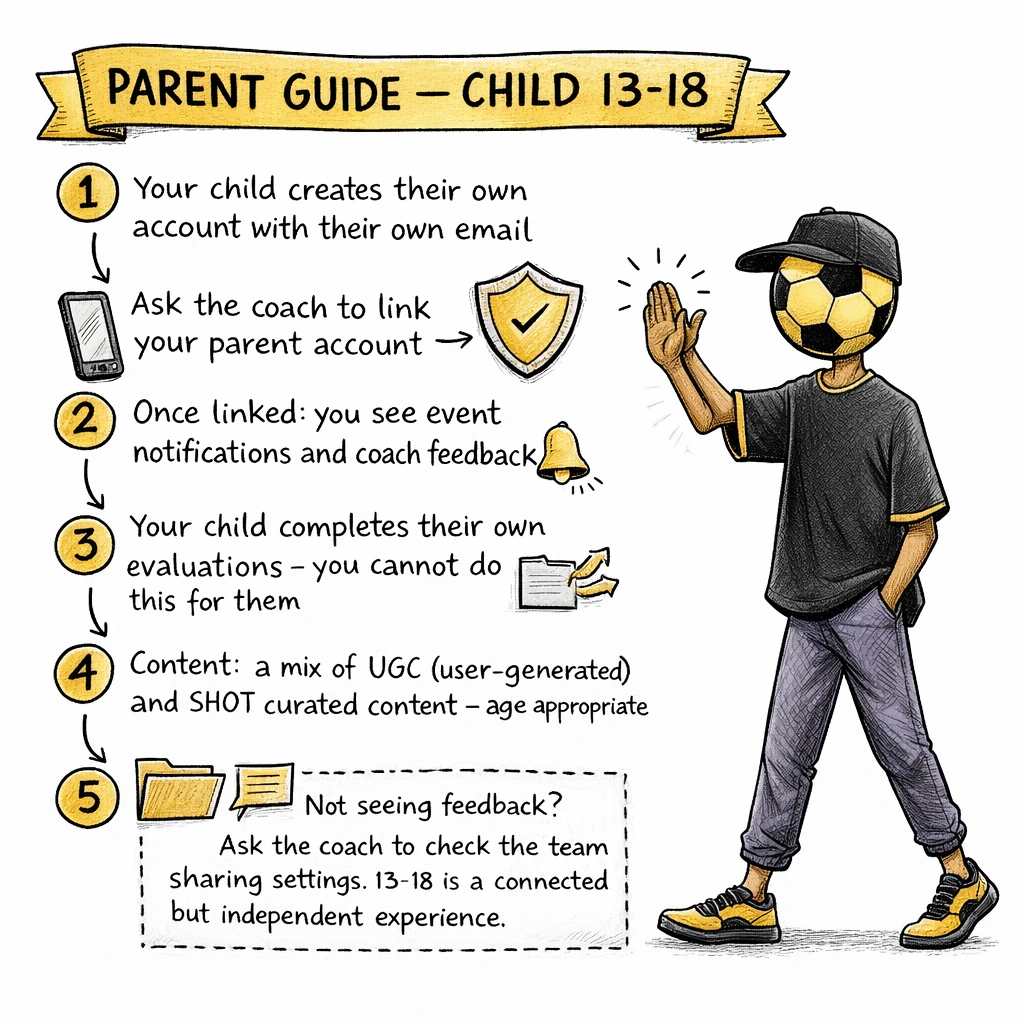
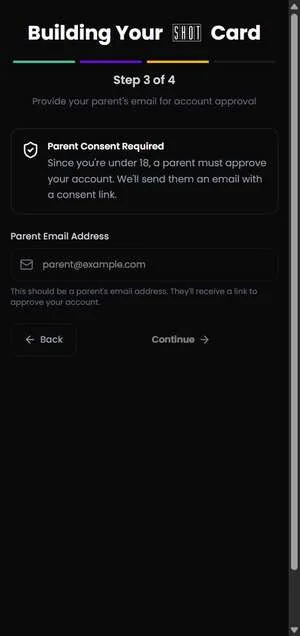
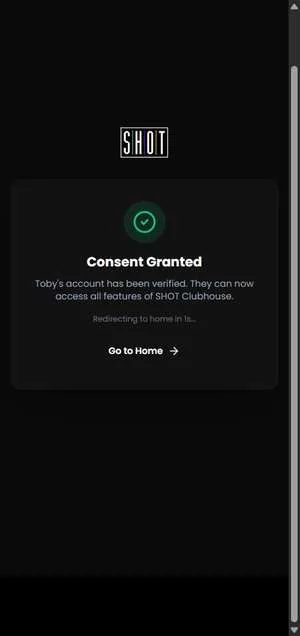
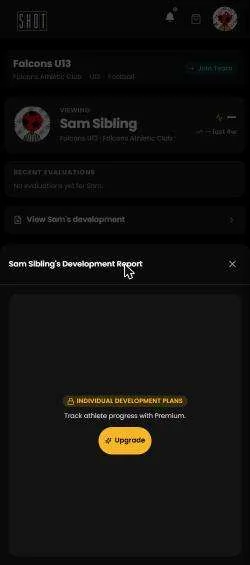
Athletes aged 13 to 18 have their own account and their own login. As a parent, you can be linked to your child's account to stay informed — but your child manages their own profile and completes their own evaluations.
For adult athletes (18+)
Athlete · 18+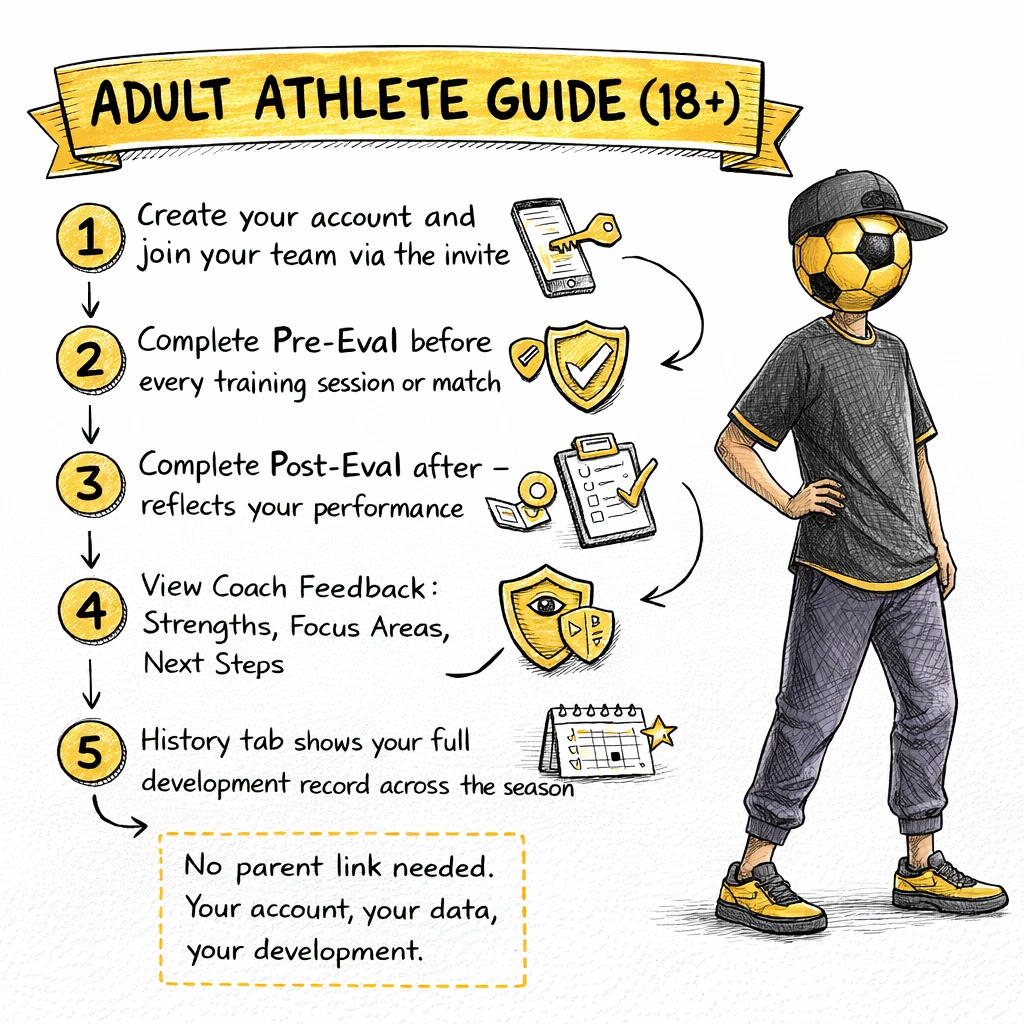
Adult athletes have full independent access. Your account is entirely your own.
For fans and supporters
Fan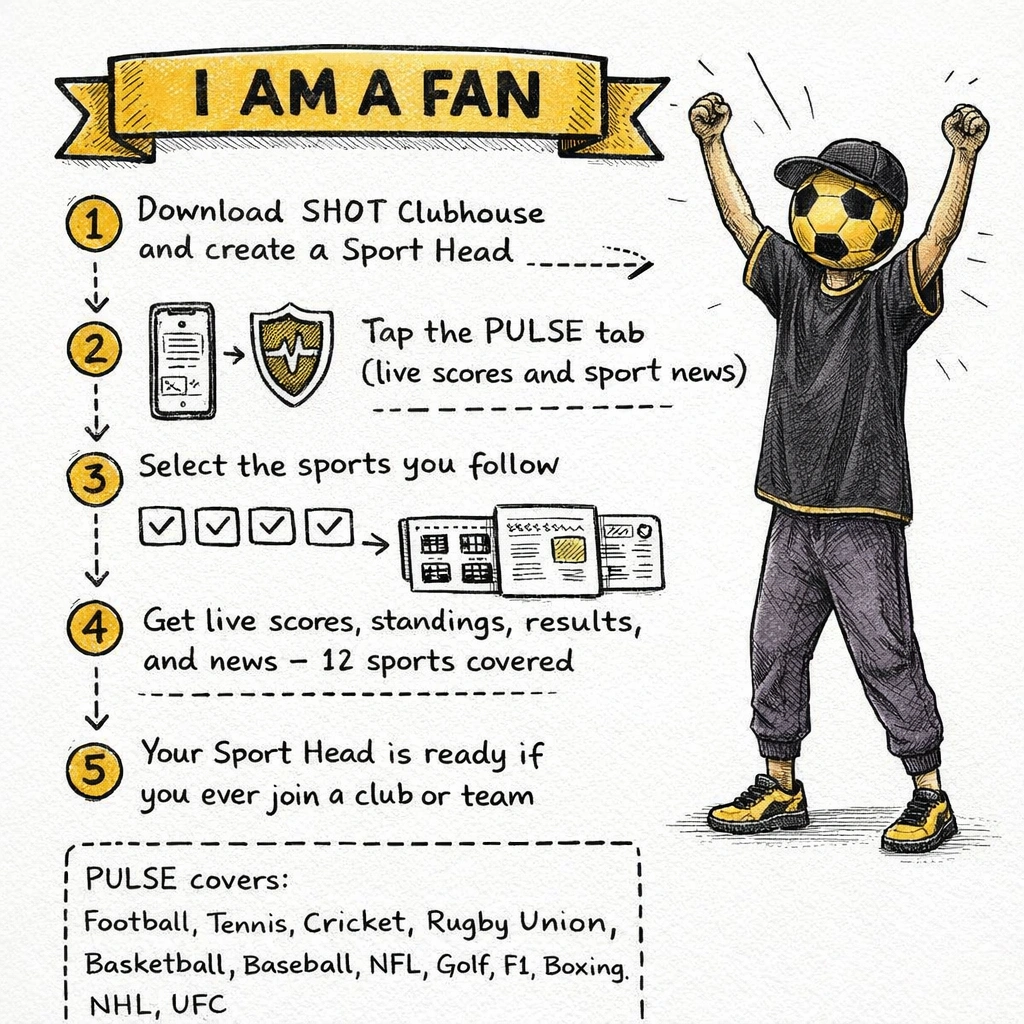
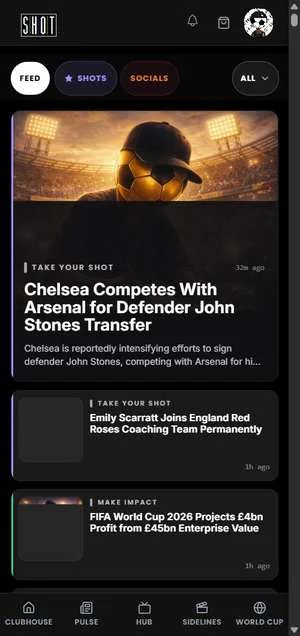
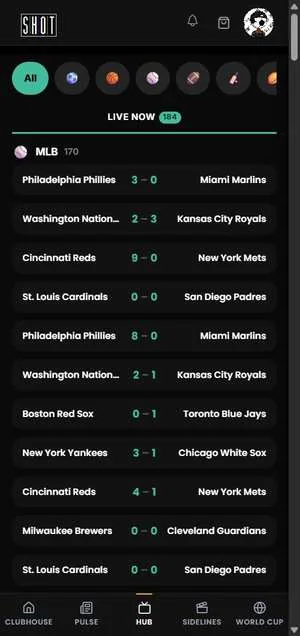
You do not need to be a coach or athlete to be on SHOT Clubhouse. Download the app, create a Sport Head, and use PULSE to follow the sports and clubs you care about — live scores, news, and highlights across 12 sports in one place.
Frequently asked questions
How do I add athletes to my team?
From your team admin screen, tap Invite Players. This generates an invite link and join code. Share the link with athletes (or their parents for under-13s) via WhatsApp, email, or your usual messaging channel. Once they follow the link and enter the join code, they appear in your Active Athletes list.
What is a Sport Head?
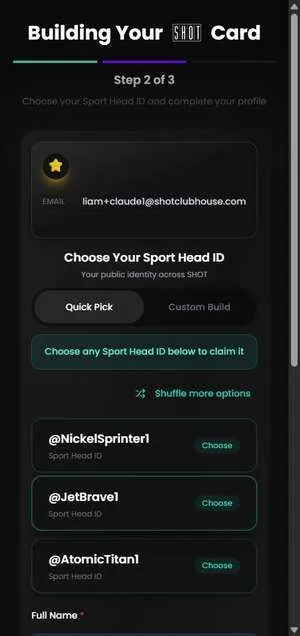
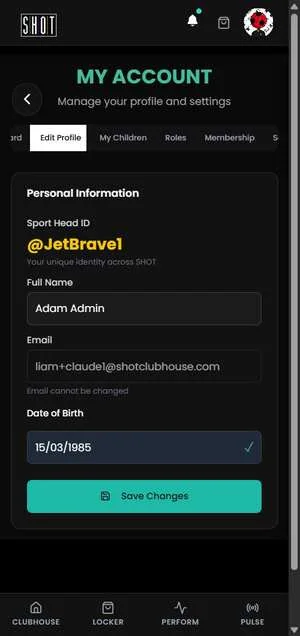
Your Sport Head is your identity on SHOT Clubhouse. Every user has one — coaches, athletes, parents, and fans. It is your single account across every club, sport, and role you hold on the platform. You set a unique handle and avatar when you create it.
Can I run multiple sports from one account?
Yes. One Sport Head covers every sport, club, and role you hold. You can coach football and manage a swimming programme simultaneously. Athletes can belong to teams across different sports. Parents can have children in different clubs and sports — all managed from one account.
See the Multi-sport providers and Multiple clubs sections for setup guidance.
How do frameworks work?
A framework is a structured 48-week development programme for a sport and level. You assign one to each team when you create it. Each week, a new block activates with fresh evaluation questions across five categories — Technical, Physical, Psychological, Social, and Personal. You do not need to set this up or prepare questions; it advances automatically week by week.
SHOT Clubhouse covers 47 sports across seven levels: Play, Foundation, Development, Recreational, Competitive, Academy, and Professional, creating 329 frameworks in total.
What are the evaluation types and how do I choose?
There are three evaluation types you can enable per team:
Pre-Eval (Prepare) — athletes rate themselves before a session or match.
Post-Eval (Reflect) — athletes reflect on performance after the event.
Coach Feedback — the coach rates each athlete across five categories after the event.
You can enable all three, or just Coach Feedback if you want to start simply. These settings can be changed at any time from team settings.
My child is under 13. How do I set up their account?
Create your own SHOT Clubhouse account using your email address. When the coach sends an invite link, follow it while logged in to your account and add your child's profile. Under-13 athletes do not receive a separate login — all access and notifications come through your parent account. See the Parent guide (under 13) for step-by-step instructions.
My child is 13 to 18. Can I still see their coach feedback?
Yes, if a parent link is set up. Athletes aged 13–18 have their own account and log in independently, but a parent account can be linked so you receive the same event notifications and can view coach feedback. Ask your coach or club admin to set up the link. If you are not seeing feedback you expect, ask them to check the team's sharing settings.
How does a school or multi-sport academy set up across different sports?
You have two options. Create a separate club for each sport (e.g. "Riverside School FC", "Riverside School Swimming") — useful for larger organisations with separate coaching teams per sport. Or create one club and add teams for different sports within it — simpler for smaller organisations where admin is centralised. Athletes who participate in multiple sports join multiple teams with one Sport Head. See the Multi-sport providers section for full guidance.
What sports are covered?
SHOT PERFORM frameworks cover 47 sports across seven development levels: Football, Rugby Union, Rugby League, Cricket, Basketball, Boxing, Combat Sports, Functional Fitness, Golf, Padel, Handball, Gaelic Games, Badminton, Futsal, Volleyball, Weightlifting, Table Tennis, Track & Field, Endurance, Motorsport, Ice Hockey, American Football, Baseball, Lacrosse, Water Polo, Rowing, Gymnastics, Squash, Netball, Field Hockey, Swimming, Tennis, Yoga, Pilates, Pickleball, Cycling, Triathlon, Climbing, Skateboarding, Running, Dance, Judo, Taekwondo, Karate, Cheerleading, and Mindset & Wellbeing.
PULSE live scores and standings cover 12 sports: Football, Tennis, Cricket, Rugby Union, Basketball, Baseball, American Football, Golf, Motorsport (F1), Boxing, Ice Hockey, and UFC.
What is PULSE?
PULSE is one of the four rooms in SHOT Clubhouse. It brings live scores, standings, and results for 12 sports into the same app you use for your club and evaluations. It also carries sport news and articles. Tap the PULSE icon at the bottom of the screen to access the Sport Hub. See the PULSE guide for full details.
Can a coach manage multiple clubs and teams?
Use the team selector in PERFORM to switch between the teams available to your account. Find club-management actions in MORE under Club management.
What does an athlete see after a coach submits feedback?
The athlete sees their Strengths (highest-scoring categories from that event), Focus Areas (the categories to work on), and specific Next Steps generated from the framework for that week. These are framed as development guidance, not a grade. For athletes under 18, parents with a linked account see the same feedback.