
Clubs & Teams
Managing clubs and teams
Clubs are the top-level organisation. Teams sit inside them. This guide covers how to create both, invite and manage your squad, and change settings as your season progresses.
Club dashboard and team page
SHOT Clubhouse provides a clean operational separation between club-level administration and team-level coaching:
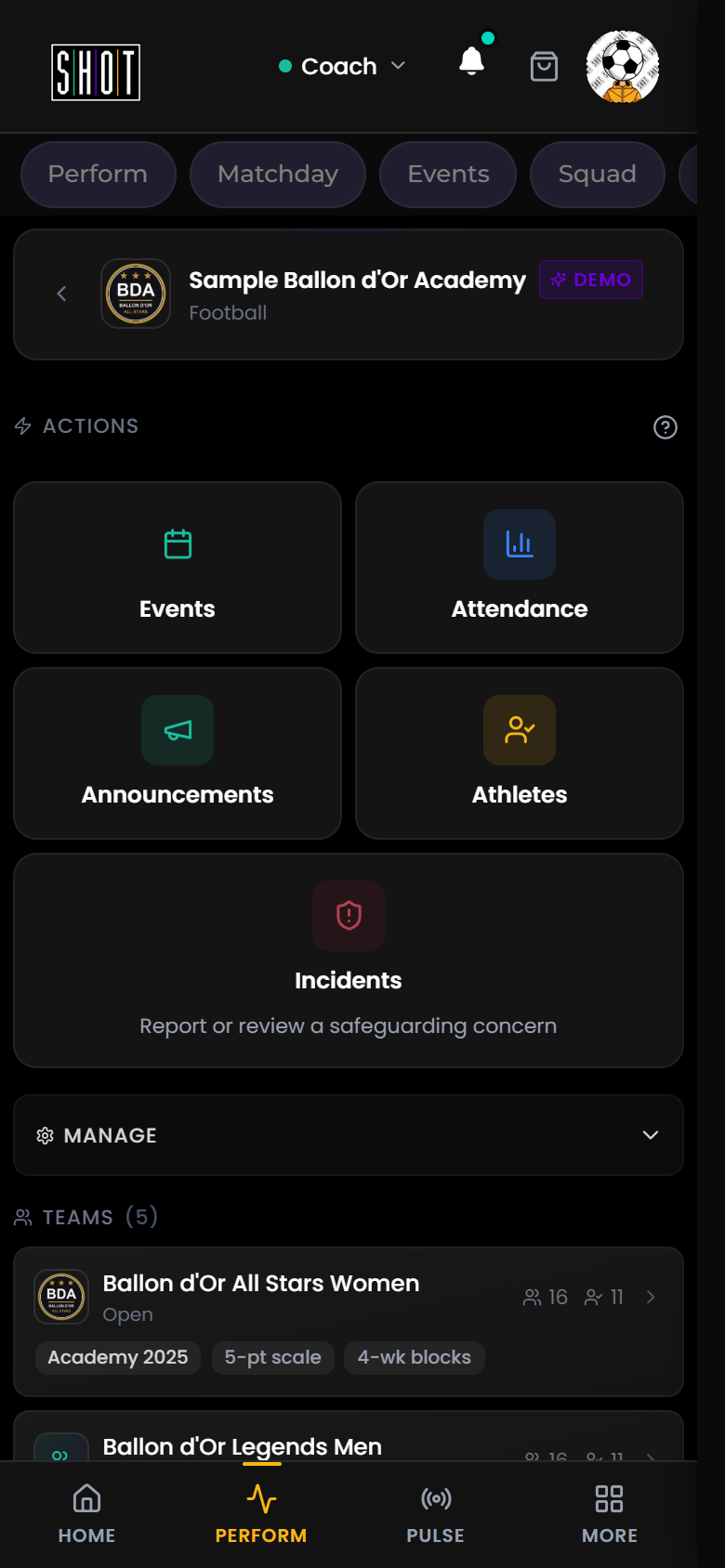
- Club dashboard: Open it from MORE > Club management > Club dashboard. It oversees the club: events, attendance, announcements, athletes, incidents, documents, holidays, observer coaches and all of the club's teams.
- Team page: Open PERFORM and choose your team. It focuses on team actions: Make Announcement, Invite Athletes, Team Development Report, Team Settings, the Evaluation Framework card and Explore Framework.
Join requests and club codes
Clubs that opt in let people find a team and ask to join. Coaches and club admins review these in MORE > Club management > Join requests, where they can approve, decline with a reason, or move the person to a better fit. Club admins also create club codes under Club invite codes. See every way to join and club admin daily tasks. There is no in-app roster upload; the SHOT team can load a spreadsheet for you by hand.
How clubs and teams are structured
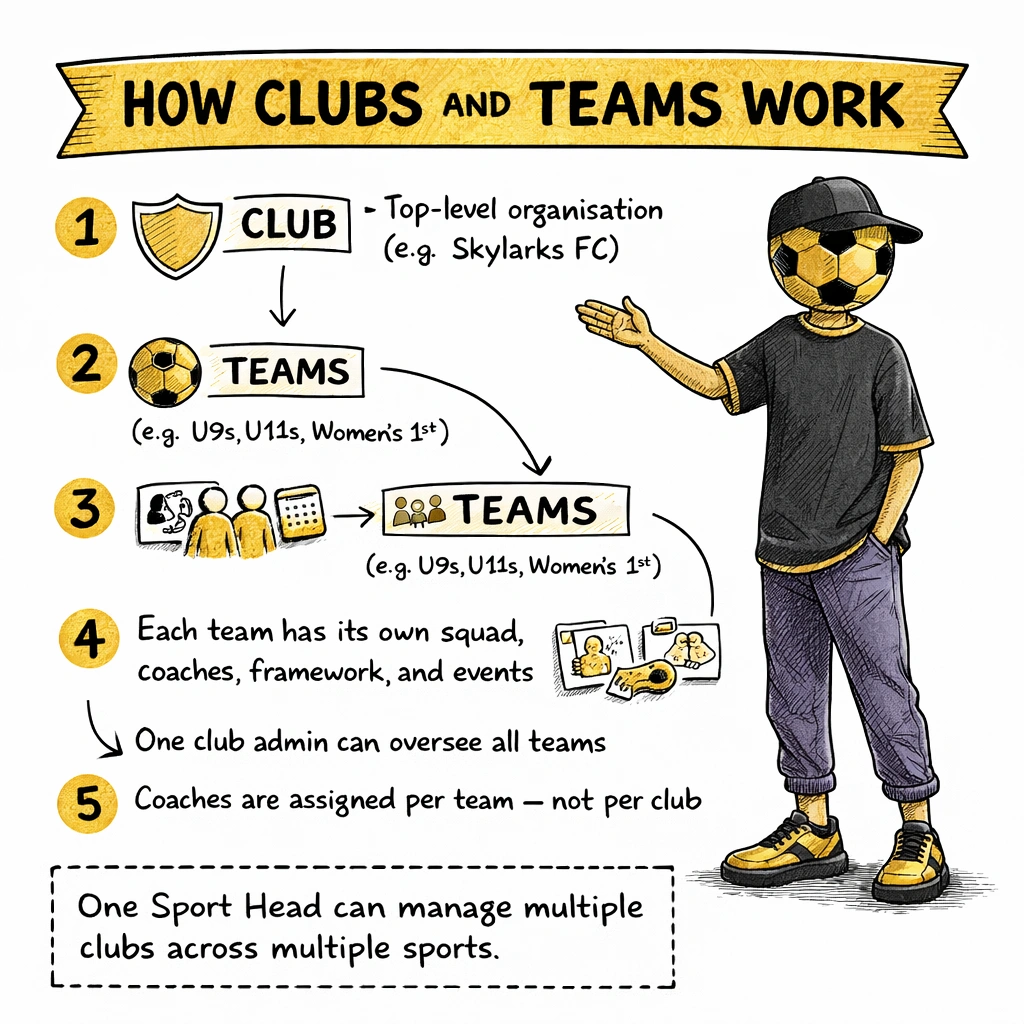
SHOT Clubhouse uses a two-level structure: clubs at the top, and teams inside each club.
A club is your organisation — for example, Isleham United Youth FC. Inside that club you might have a U9s team, a U11s team, and a Women's First team. Each of those is a separate team with its own squad, its own events, and its own evaluation framework.
You can have one team or many. Most grassroots clubs start with one team and add more as they grow.
Create a club
Club admin CoachYou only need to create a club once. Every team you run lives inside it.
Watch: Create a club
Add a team
Coach Club adminOnce your club exists, you can add as many teams to it as you need.
Watch: Create a team
Invite athletes
CoachAll teams on SHOT Clubhouse are invite-only. From the team page, tap Invite Athletes. You will receive a shareable link and a join code for your team. You can set a maximum number of uses and an expiry date, and withdraw or replace the code.
Watch: Invite athletes
Add coaches
Coach Club adminFrom the team page, tap Add Coach. Enter the coach's email, choose a role (Head, Assistant, Goalkeeper, Fitness, Technical, Defence or Attack) and send the invite by email or link. Tick View-only to add an observer coach. The coach needs their own Sport Head to accept.
Once a coach joins a team, they can:
Managing athletes
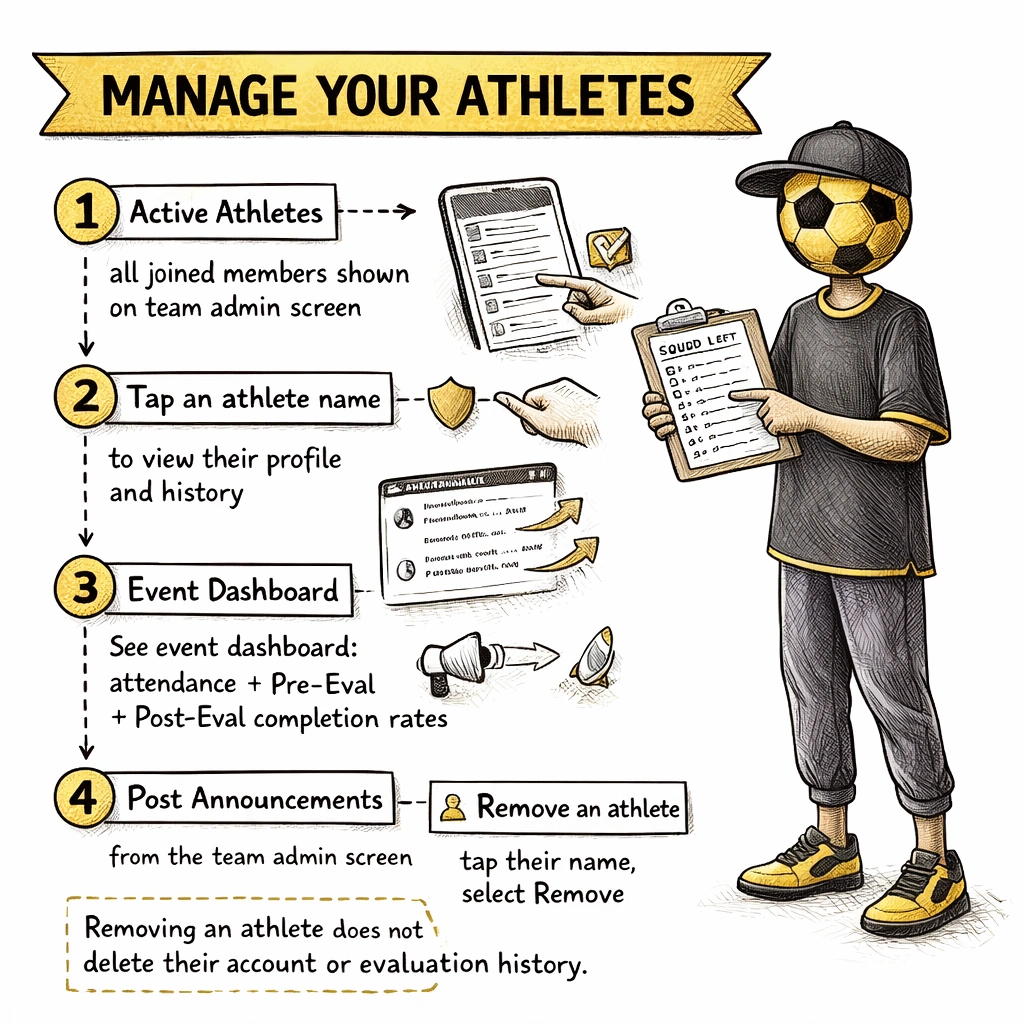
CoachYour Active Athletes list is on the team page, below the Evaluation Framework section. Coaches also have a Squad tab in PERFORM. It shows every athlete who has accepted their invite and joined the team, with a total count.
Tap an athlete to open their card, with their details, Evaluation intensity and management options.
Confirming attendance at events
On the event dashboard, the Dashboard tab shows a real-time attendance count, how many athletes have replied, and how many have completed Prepare and Reflect. Use this before and after sessions to see who is engaged.
Admin tools — announcements, fixtures, and calendar
Club admin CoachClub admins and coaches can manage the team's schedule and communications from the team page and MORE.
Coach Notes — free-form feedback
CoachAfter each event, coaches can write free-form Coach Notes alongside the structured evaluation scores. Coach Notes appear on the event result screen and are visible to athletes (and parents for under-18s).
Coach Notes are your space to go beyond scores — to highlight specific moments, recognise team performance, call out an athlete's development, or give context that the five-category scores alone do not capture.
Remove an athlete
CoachTo take an athlete out of the active squad, open the Squad tab, tap the athlete and choose Make inactive. To remove them from the team, use Remove Athlete from Team on their card.
Removing an athlete from a team does not delete their account or their evaluation history. Their records remain attached to their Sport Head. If they join another team in the future, their history goes with them.
Team settings
CoachTeam settings are on the team page (tap Edit on Team Settings). Here you can: